Connect WhatsApp
Step-by-step guide to connect your WhatsApp Business number to Opzello, with Claude or by yourself
Last updated 2026-11-25
This guide shows how to connect your WhatsApp Business number to Opzello. Only the workspace owner can do it. It takes about 15 minutes the first time.
You connect through your own Meta app. At the end you paste two things into Opzello: an access token and the app's App Secret. Opzello then finds your number and sets up message delivery by itself.
Before you start
- A Meta business portfolio. If you do not have one, you can create it during the steps.
- A phone number you can receive an SMS on. This number must not be active in the WhatsApp or WhatsApp Business app on a phone. If it is, you lose the chats in that app when you add it here.
- Optional: Claude in Chrome, if you want Claude to guide you through Meta.
To open the connection page: if no number is connected yet, open Inbox under WhatsApp in the sidebar and click Set Up WhatsApp. If a number is already connected, open Settings (the gear icon) at the top of the inbox and choose WhatsApp connection.
The three ways to connect
- Set up with Claude. Claude in Chrome guides you through Meta. You do the private steps yourself.
- Do it myself. You follow the steps below on your own.
- Connect with Facebook. Coming soon.
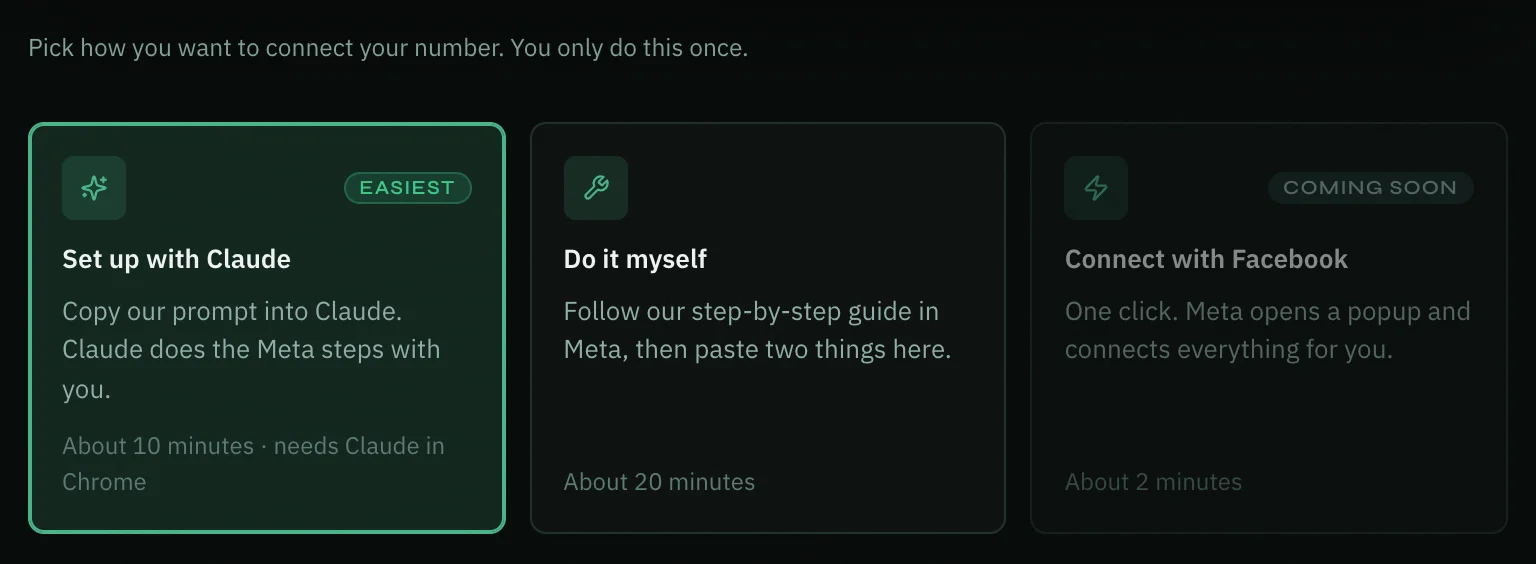
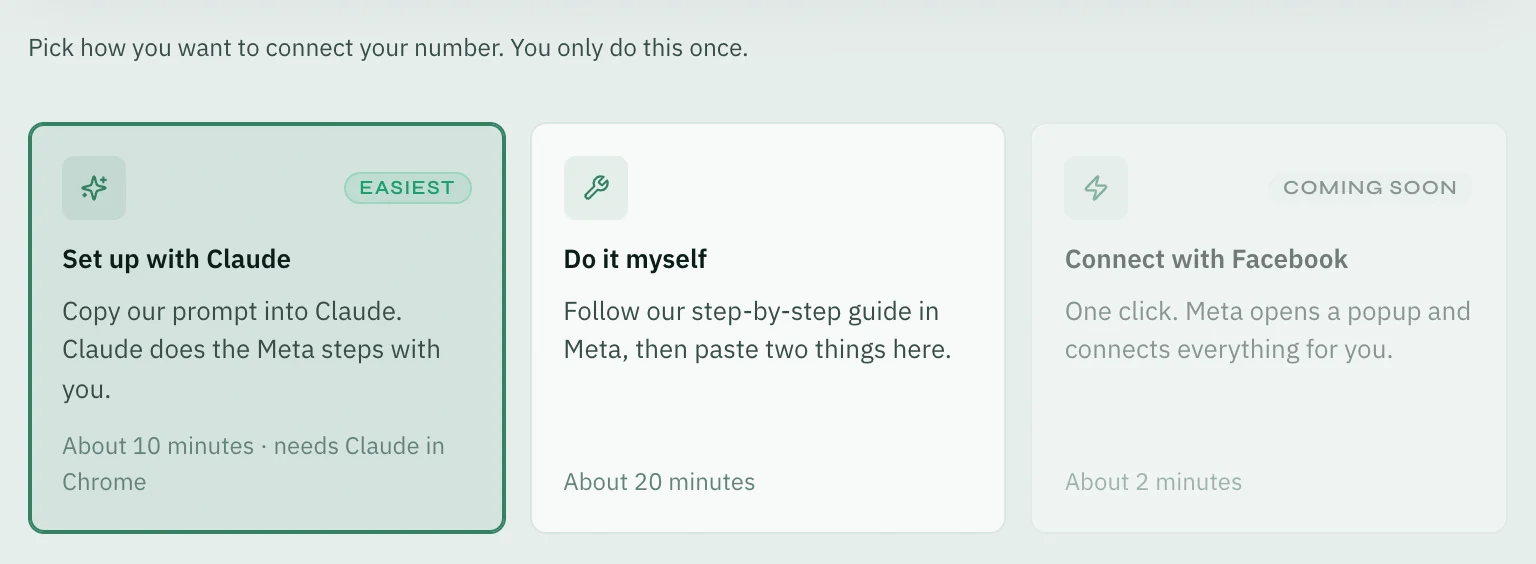
Set up with Claude
- Copy the prompt. On the connection page, Set up with Claude is picked already. Click Copy prompt. You can also copy it from the box below.
- Give it to Claude. Click Open Claude, start a new chat in Claude in Chrome, paste the prompt and send it. If you do not have Claude in Chrome yet, that link shows you how to add it.
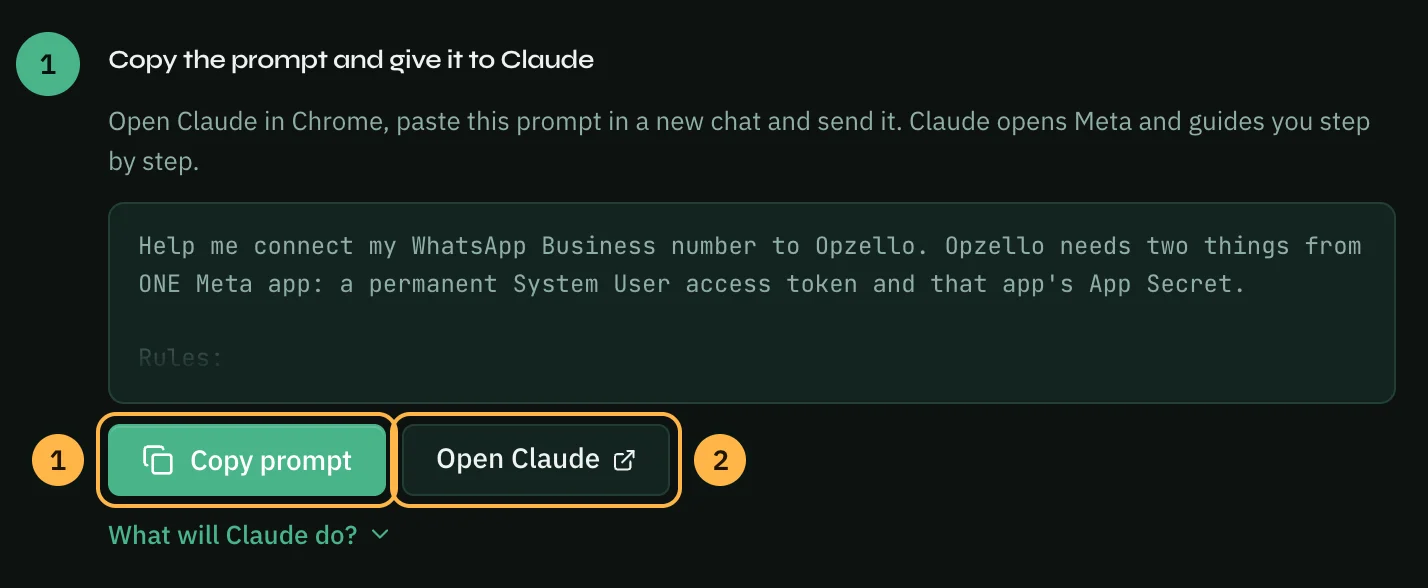
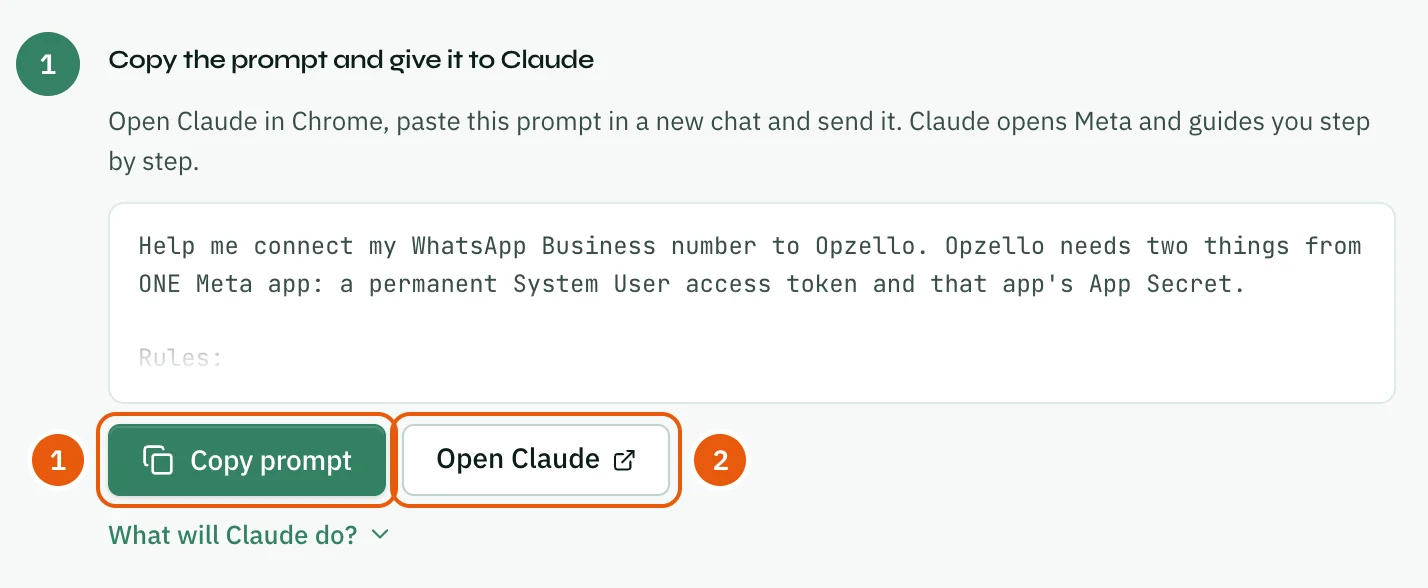
Help me connect my WhatsApp Business number to Opzello. Opzello needs two things from ONE Meta app: a permanent System User access token and that app's App Secret.

Rules:
- I log in myself. I type every SMS or login code myself.
- Ask me before you accept any terms, create a business portfolio, or change anything that already exists. Never delete anything.
- Never type, copy or repeat my access token or App Secret. When we reach them, tell me exactly where to click and let me copy them myself.
- If the Meta screen looks different from these steps, describe what you see and ask me.

Steps:
1. Open business.facebook.com. If I already have a business portfolio, ask me which one to use. If I have none, ask me before creating one.
2. Open developers.facebook.com/apps. If I already have an app with WhatsApp added, ask me if we should use it. If not, create a new app with the WhatsApp use case (or the "Business" type), name it "Opzello - <my business name>", and link it to the business portfolio from step 1.
3. In the app, open WhatsApp > API Setup and add my real phone number with its display name and category. Stop so I can type the verification code.
   Warning: this number must NOT be active in the WhatsApp or WhatsApp Business app on a phone. If it is, stop and tell me before going on.
4. Open business.facebook.com > Settings > Users > System users. Add a system user with the Admin role. Under "Assign assets", give it full control of the app from step 2 AND of my WhatsApp account.
5. Click "Generate token" for that system user. Choose the app from step 2, set expiry to "Never", and tick these three permissions: whatsapp_business_management, whatsapp_business_messaging and business_management. STOP before the final Generate button. I will click it and copy the token myself.
6. Open the app > App settings > Basic. Show me where the App Secret is. I click "Show" and copy it myself.
7. If the app is in Development mode, tell me what is needed to switch it to Live (usually a privacy policy URL) and ask me before you change it.
8. Tell me to go back to Opzello and paste the access token and the App Secret. Opzello finds my number and sets up message delivery by itself.
9. Optional, ask me first: open business.facebook.com/billing_hub/payment_settings for the same business portfolio and show me where to add a payment method for my WhatsApp account (it can also be in WhatsApp Manager > Overview). Tell me why: replies to customers who message me first are free up to Meta's monthly allowance, but template messages and campaigns are always charged by Meta, and Meta will not send them without a payment method. I type the card details myself. Never type, copy or repeat them. If I say skip, go on.
10. At the end, write a short summary: the app name, the phone number, the system user name and my WhatsApp Business Account ID (you can find it in WhatsApp Manager). Do not include any token or secret.
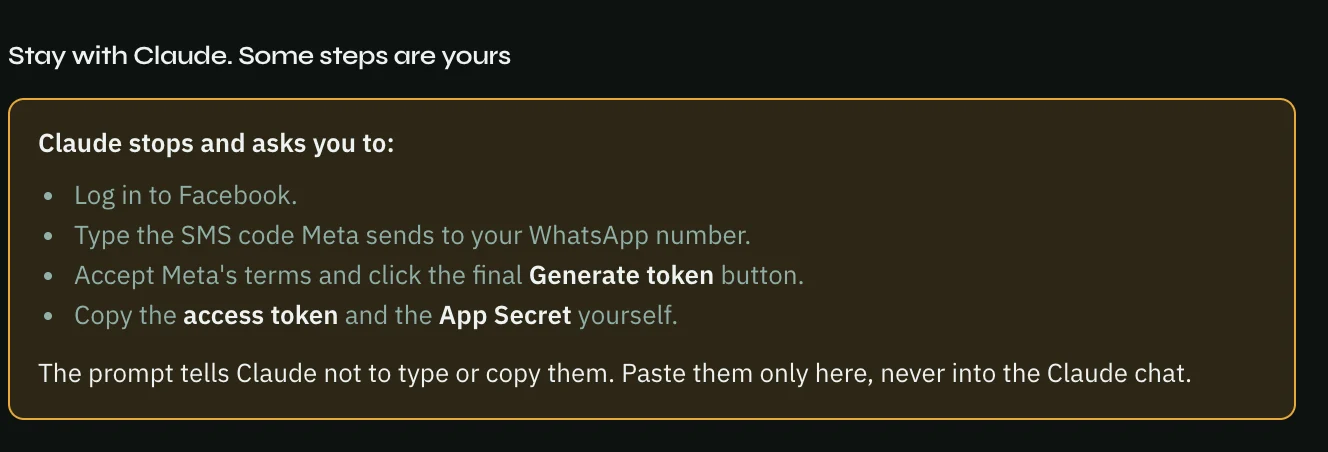
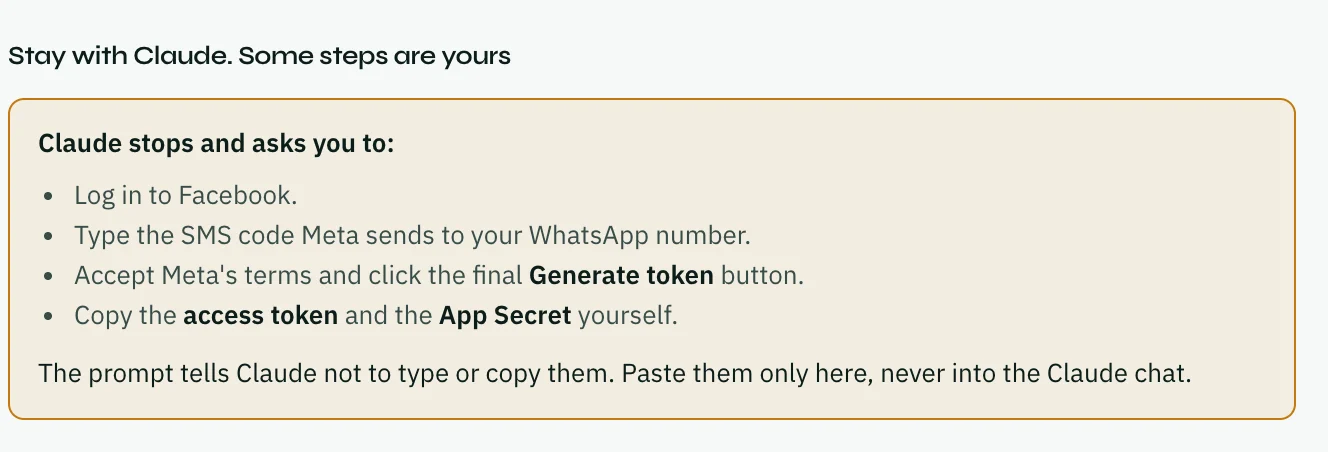
- Stay with Claude. Claude opens the Meta pages, creates or picks the app, adds your number, makes the system user, and shows you where to click. Some steps are yours: log in, type the SMS code, accept Meta's terms, click the final Generate token button, and copy the access token and the App Secret yourself. The prompt tells Claude not to type, copy or repeat them. Near the end Claude asks if you want to add a payment method for template messages. You can skip it, and if you add one you type the card yourself.
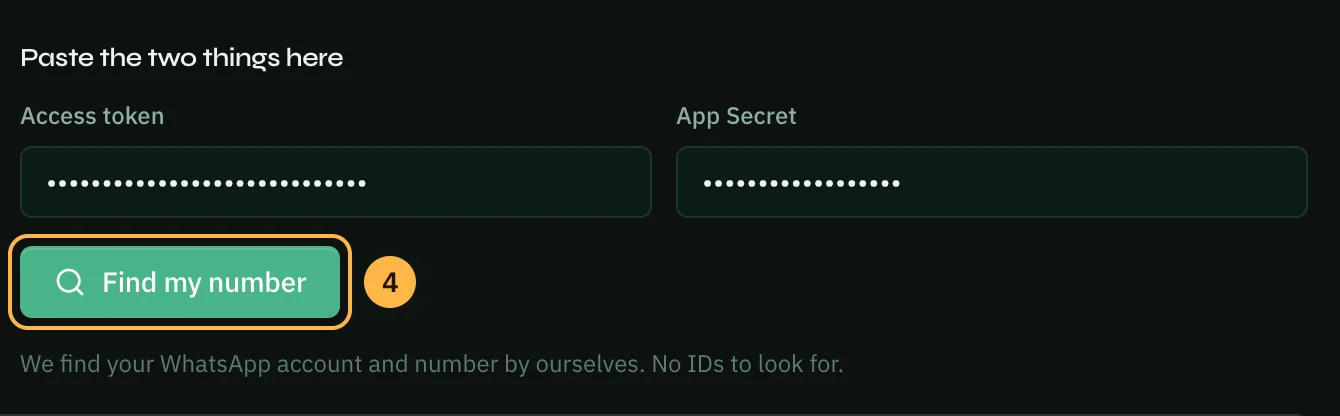
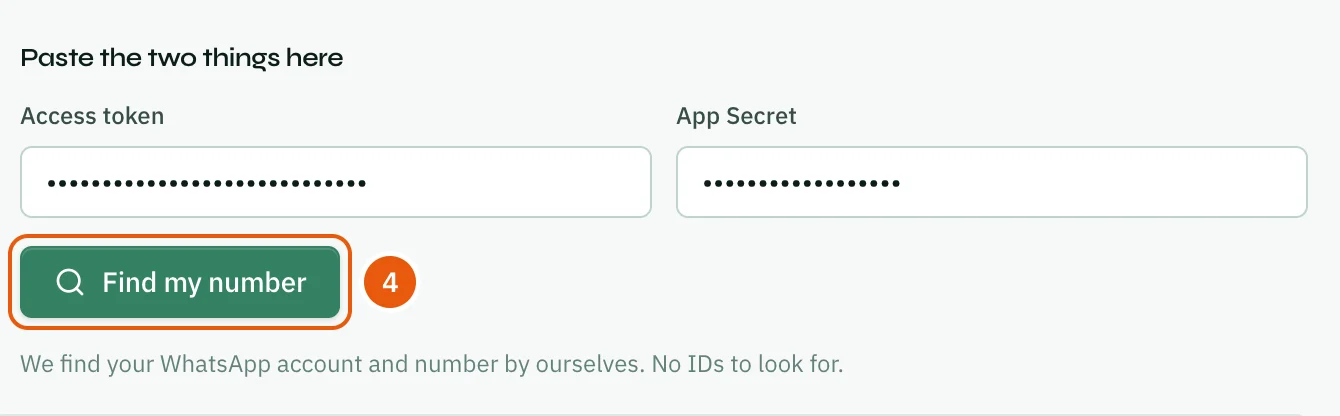
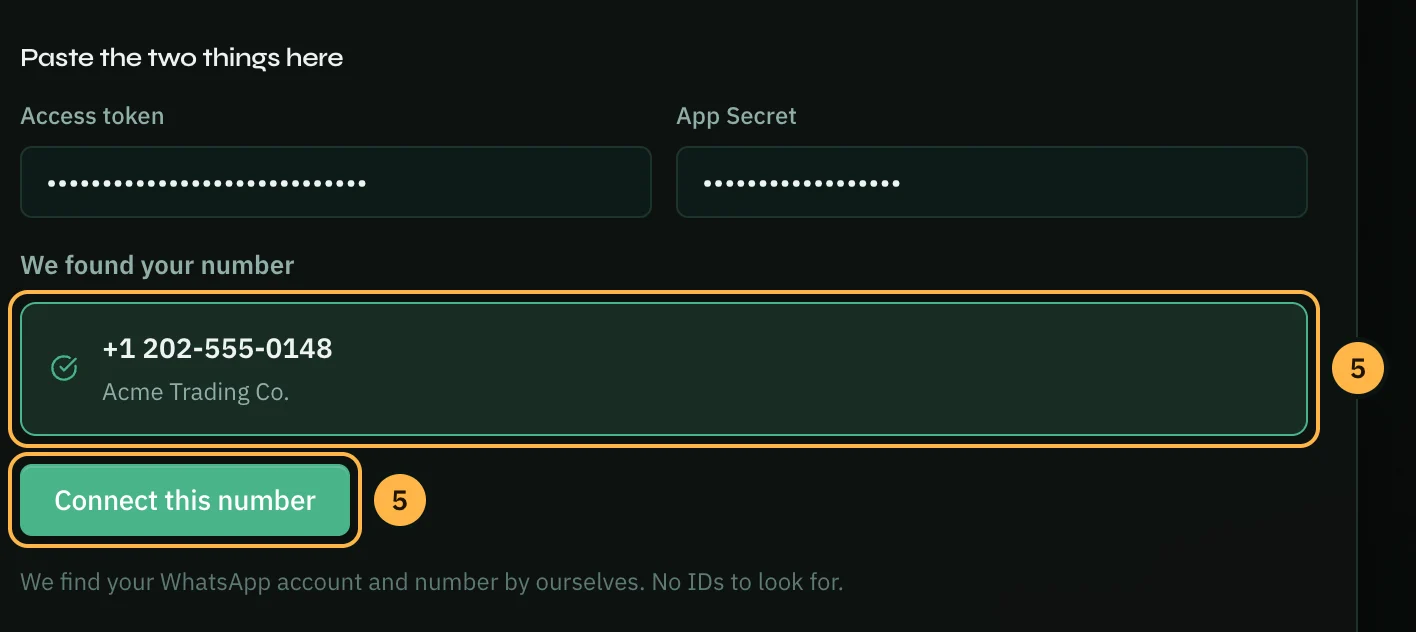
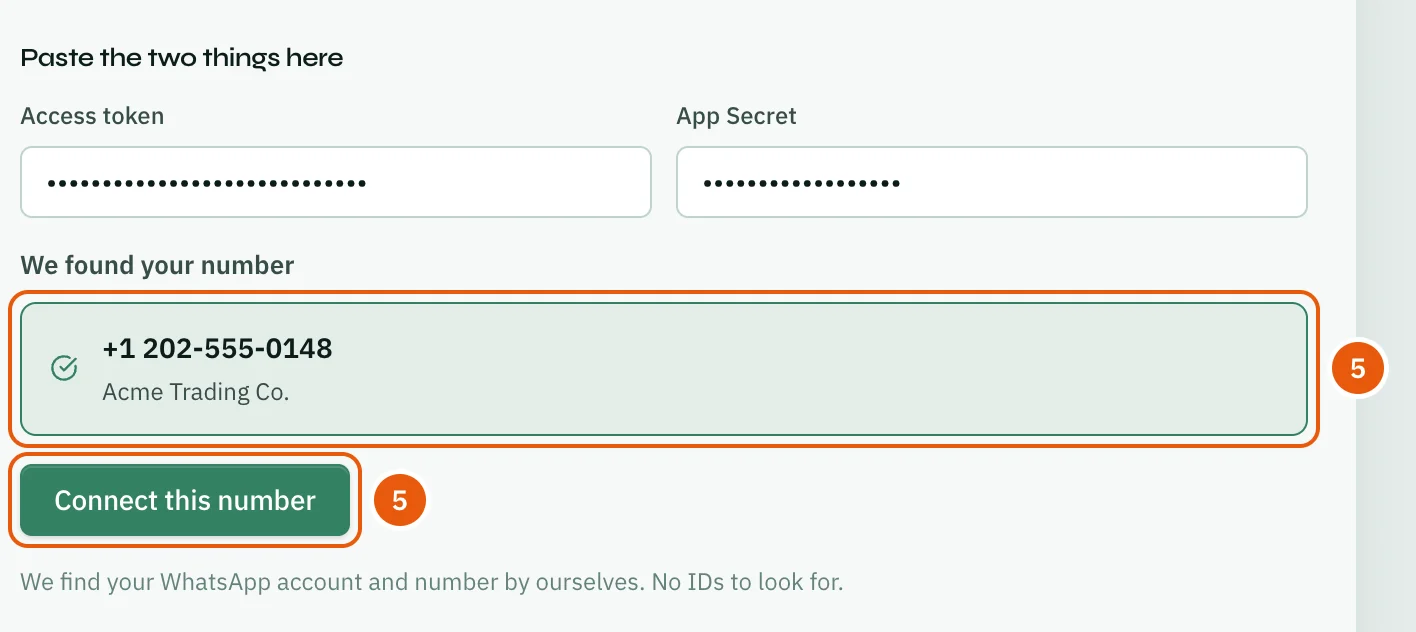
- Paste the two things. Back in Opzello, paste the Access token and the App Secret, then click Find my number.
- Connect. Opzello shows the number it found. Pick it and click Connect this number.
Do it myself
- Business portfolio. Open business.facebook.com. Use your business portfolio, or create one.
- Create the app. Go to developers.facebook.com/apps and click Create app. Choose the WhatsApp use case (or the Business type), give it a name, and link it to your business portfolio.
- Add your number. In the app open WhatsApp → API Setup. Add your phone number with its display name and category. Type the SMS code Meta sends you.
- Make a system user. In your business settings open Users → System users. Click Add, give it a name and the Admin role.
- Give it your assets. Select the system user, click Assign assets, and give it full control of your app and of your WhatsApp account.
- Generate the token. Click Generate token for that system user. Choose your app, set expiry to Never, and tick all three permissions:
whatsapp_business_management,whatsapp_business_messagingandbusiness_management. Click Generate token and copy it. Meta shows it only once. - Copy the App Secret. In your app open App settings → Basic and click Show next to App secret. It must be from the same app as the token.
- Paste both on the connection page, under Do it myself, and click Find my number. It looks the same as step 4 of Set up with Claude above.
- Connect. Pick your number and click Connect this number.
- Add a payment method (optional). Meta charges for template messages and campaigns and will not send them without a payment method. Open Meta's payment page, pick your business and add a card. Skip this if you only reply to customers who message you first.
If the app is in Development mode, Meta may ask for a privacy policy URL before it can go Live. Do this if Meta asks.
After you connect
The connection page now shows your number and its message delivery.
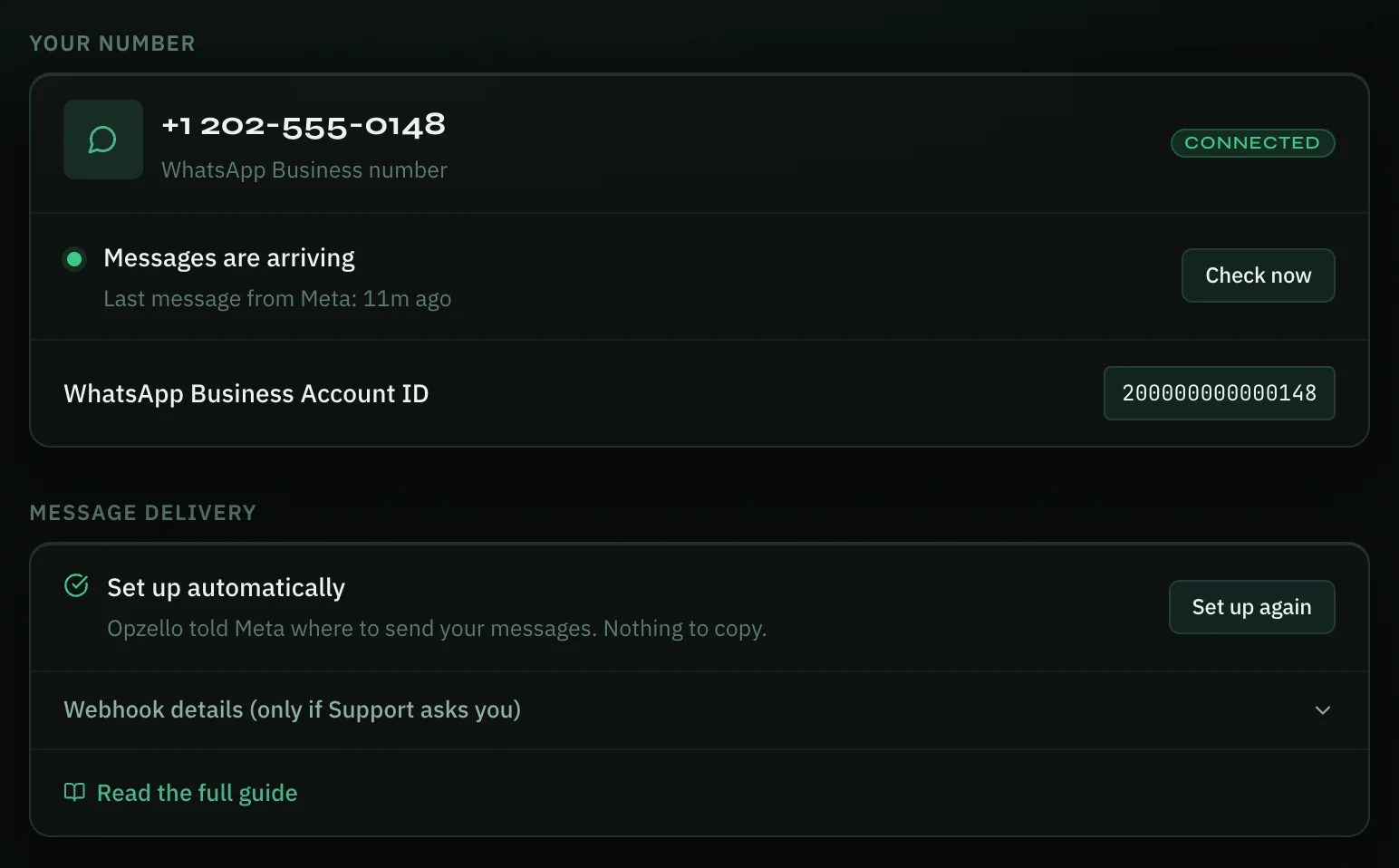
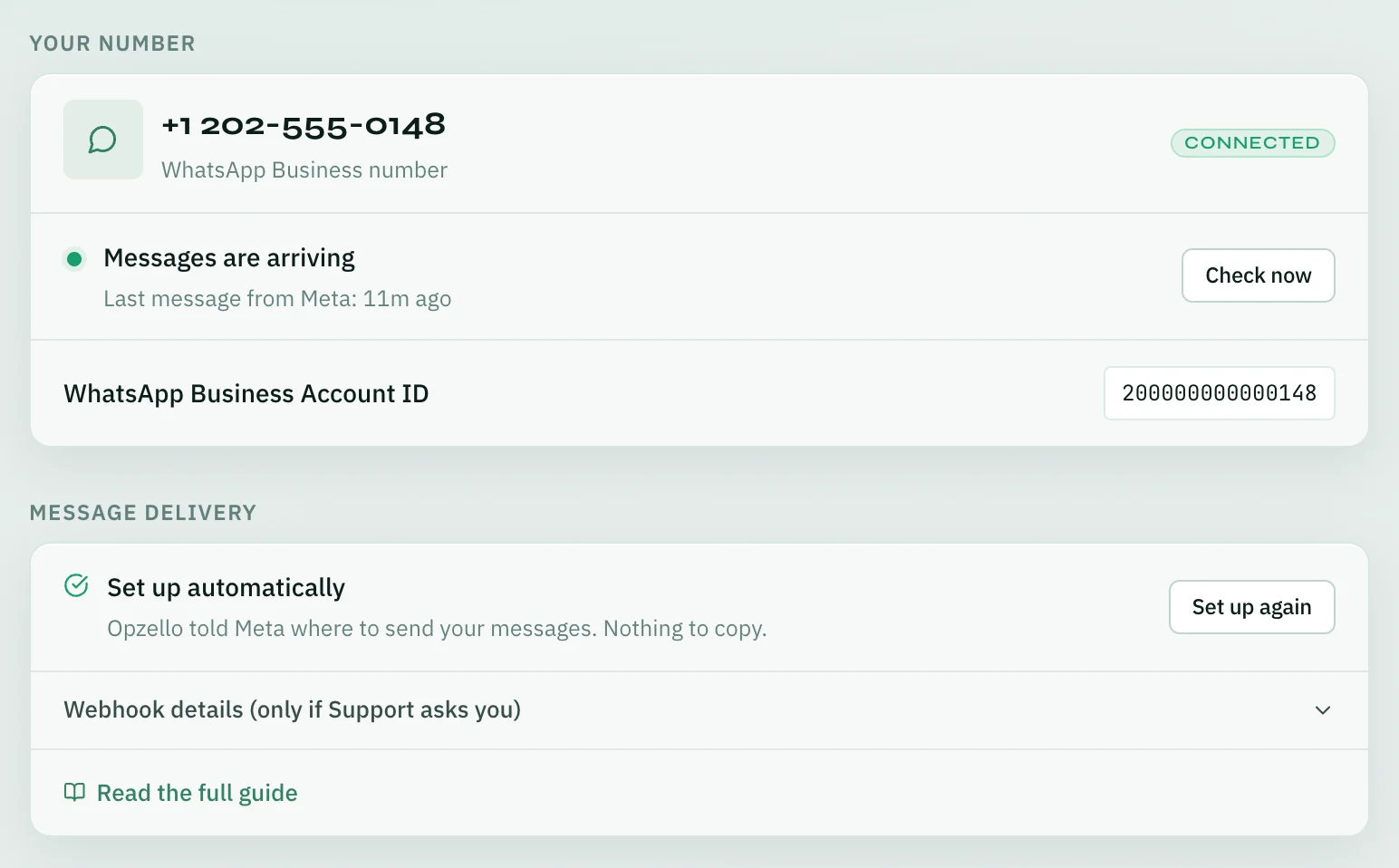
- Message delivery is set up for you. Opzello tells Meta where to send your messages. You do not paste anything into Meta.
- Webhook details. The connection page has a folded Webhook details block with a Webhook URL and a Verify Token. You only need them if Support asks.
- Try again. If message delivery could not be set up, the page says why and shows Try again. Once your App Secret is saved, Set up automatically appears if it was not set up yet.
- Paying Meta. Replies to customers who message you first are free up to Meta's monthly allowance. Template messages and campaigns are charged by Meta, and Meta will not send them until your business has a payment method. The Paying Meta block on the connection page explains this and How to add it shows the steps. See Paying Meta and your daily limit in WhatsApp Inbox.
- Send a test message. Send a WhatsApp message to your number from your own phone. The page shows Waiting for your first message… and turns green when it arrives. You can also use Test your number on the connection page.
If something goes wrong
These are the messages the app can show, and what to do.
- "Meta rejected that access token. Make a permanent System User token (expiry: Never) with the whatsapp_business_management, whatsapp_business_messaging and business_management permissions." The token is temporary, expired or wrong. Make a new System User token with expiry Never and all three permissions.
- "That App Secret doesn't belong to the app that made this token. Copy it again from App settings → Basic in the same Meta app." The token and the App Secret come from different apps. Copy the App Secret from the app you chose in step 6.
- "We couldn't find your WhatsApp account from this token. Paste your WhatsApp Business Account ID below — Claude shows it at the end of the setup, or find it in WhatsApp Manager." Opzello could not find your number from the token. Enter the WhatsApp Business Account ID. It is not a secret.
- "That token cannot read the WhatsApp account you entered. Check the WhatsApp Business Account ID and that the token has the whatsapp_business_management permission." The ID is wrong, or the system user does not have your WhatsApp account. Check the ID, and assign your WhatsApp account to the system user (step 5).
- "That token works, but no WhatsApp numbers are attached to it yet. Add a phone number to your WhatsApp Business Account in Meta Business Manager, then try again." Add your number in WhatsApp → API Setup (step 3), then try again.
- "Meta did not accept that App Secret for this access token. Copy it again from App settings → Basic in the same Meta app that created the token." or "Meta did not accept that App Secret for your access token. Copy it again from App settings → Basic in the same Meta app that created the token." The App Secret does not match the token. Copy it again from the same app that made the token.
- "Meta did not accept this access token for that phone number ID. Check both values in your Meta App Dashboard." Check the token and the phone number ID in your Meta App Dashboard. Tip: the system user needs your WhatsApp account assigned (step 5).
- "Meta could not be reached with your saved access token. Reconnect the number, then try again." Your saved token no longer works. Make a new token and reconnect.
- "We couldn't reach Meta just now. Please try again in a minute." Meta did not answer in time. Wait a minute and try again.
- "This WhatsApp number is already connected to another workspace. Disconnect it there first." A number can be in one workspace only. Disconnect it in the other workspace, then connect it here.
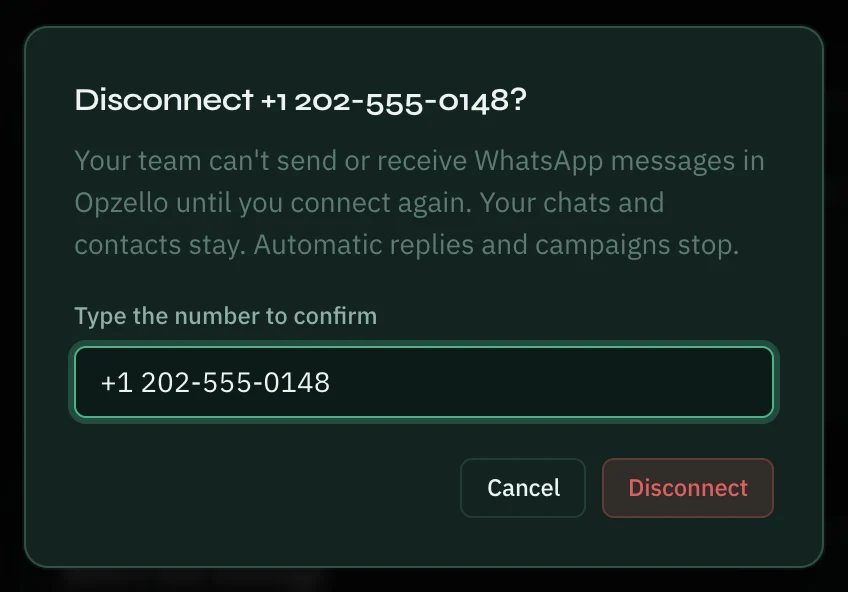
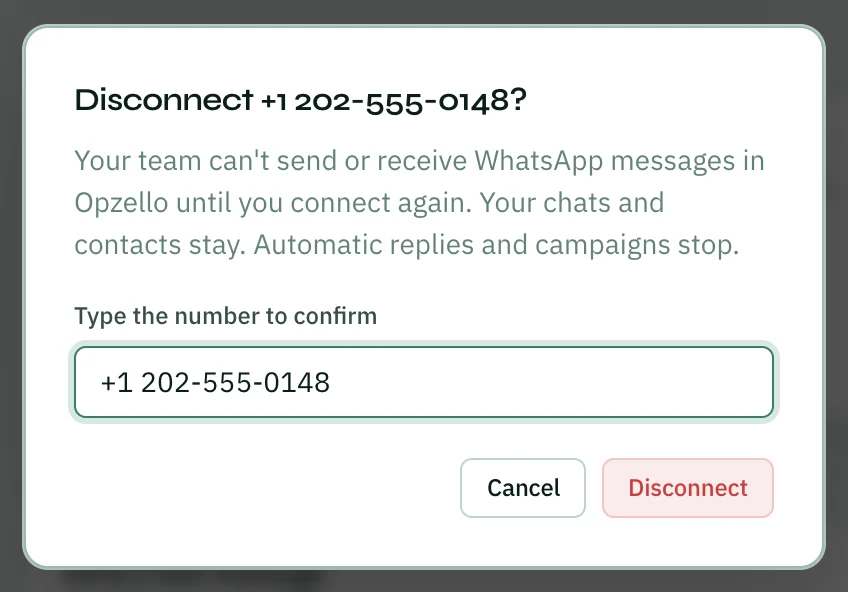
- "That number doesn't match the connected number. Nothing was disconnected." When you disconnect, type the number exactly as shown on the page.
- "Meta didn't accept the change. Try again, or copy the details below into your Meta app." Click Try again. If it fails again, copy the Webhook URL and Verify Token into your app under WhatsApp → Configuration → Webhooks and subscribe to messages.
- "Meta couldn't reach Opzello to check the link. Try again in a few minutes." Wait a few minutes and click Try again.
- Connected, but no messages arrive. Open Message delivery on the connection page and click Try again. If nothing changes, contact Support.
- Messages stopped after working before. Your token may have expired or been removed. We email you when Meta rejects it. Disconnect the number, then connect it again with a new permanent token.
Questions
Why does the token need business_management? It lets Opzello find your WhatsApp account by itself, so you do not have to look up IDs.
Is my token safe? The token can see your Meta business account, so keep it private and never share it in a chat or email. Opzello stores your access token and App Secret encrypted.
Is my token safe with Claude? The prompt tells Claude not to type, copy or repeat your access token or App Secret. You copy them yourself and paste them only into Opzello, never into the Claude chat.
Does Opzello charge for messages? No. Meta decides which messages cost money and bills you directly. Replies inside the 24-hour window are free up to a monthly allowance per number. Template messages are always charged by Meta. See Free and paid messages in WhatsApp Inbox.
Can I keep using WhatsApp on my phone? Not with this number. A number connected here cannot be active in the WhatsApp or WhatsApp Business app on a phone.
How do I disconnect? Open WhatsApp connection, go to Disconnect, click Disconnect… and type the number to confirm. Your chats and contacts stay in Opzello.
Still stuck?
Open Support in the Hub, choose the topic WhatsApp connection or messages, and tell us what the connection page shows.
Thank you — that helps us improve the docs.