AI Chat
Ask about your own work, or how to use any part of Opzello
Last updated 2026-11-01
Ask AI is a chat with Opzello AI about your own work and about how to use Opzello. Open it from the sidebar: AI Assistant → Ask AI.
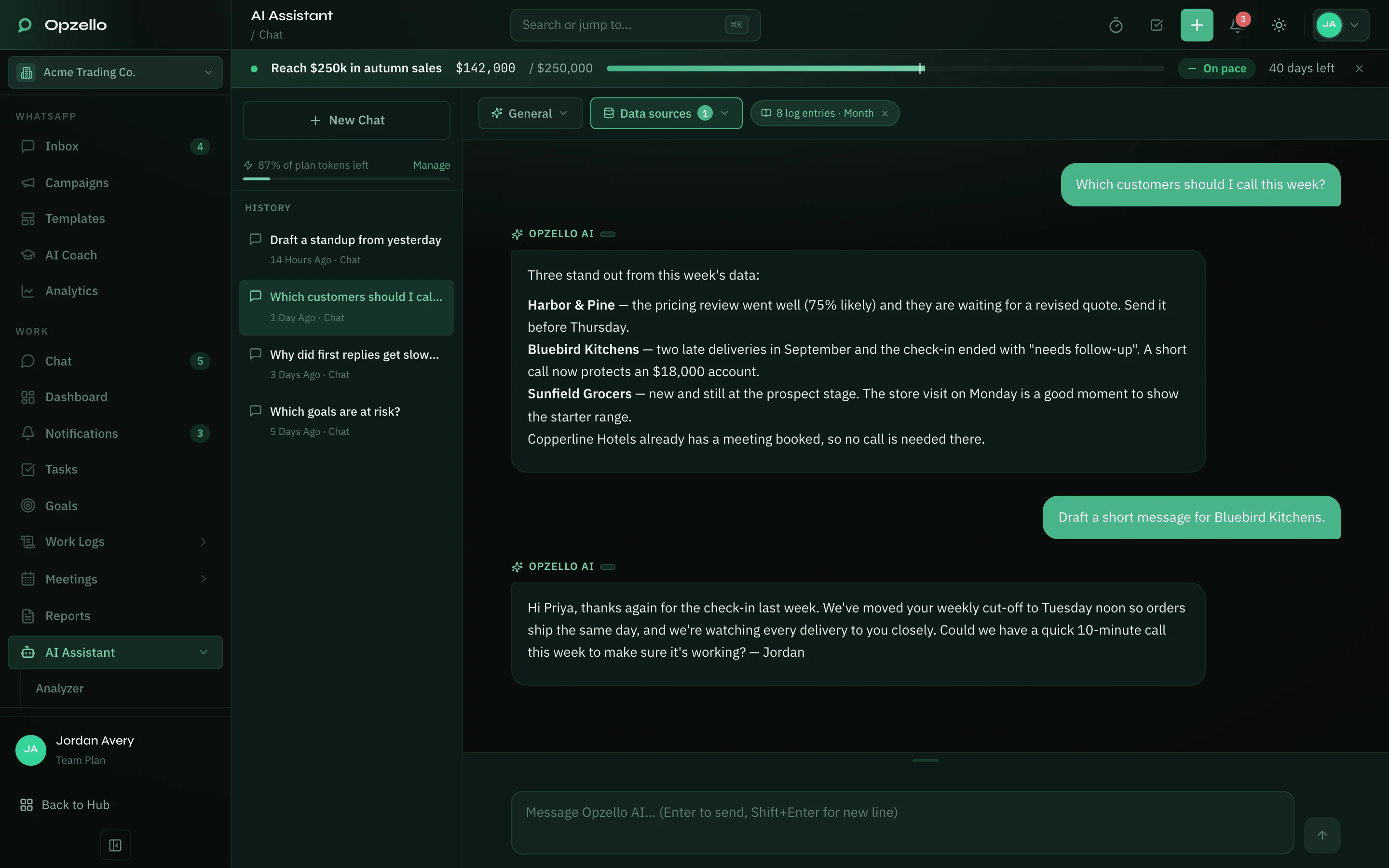
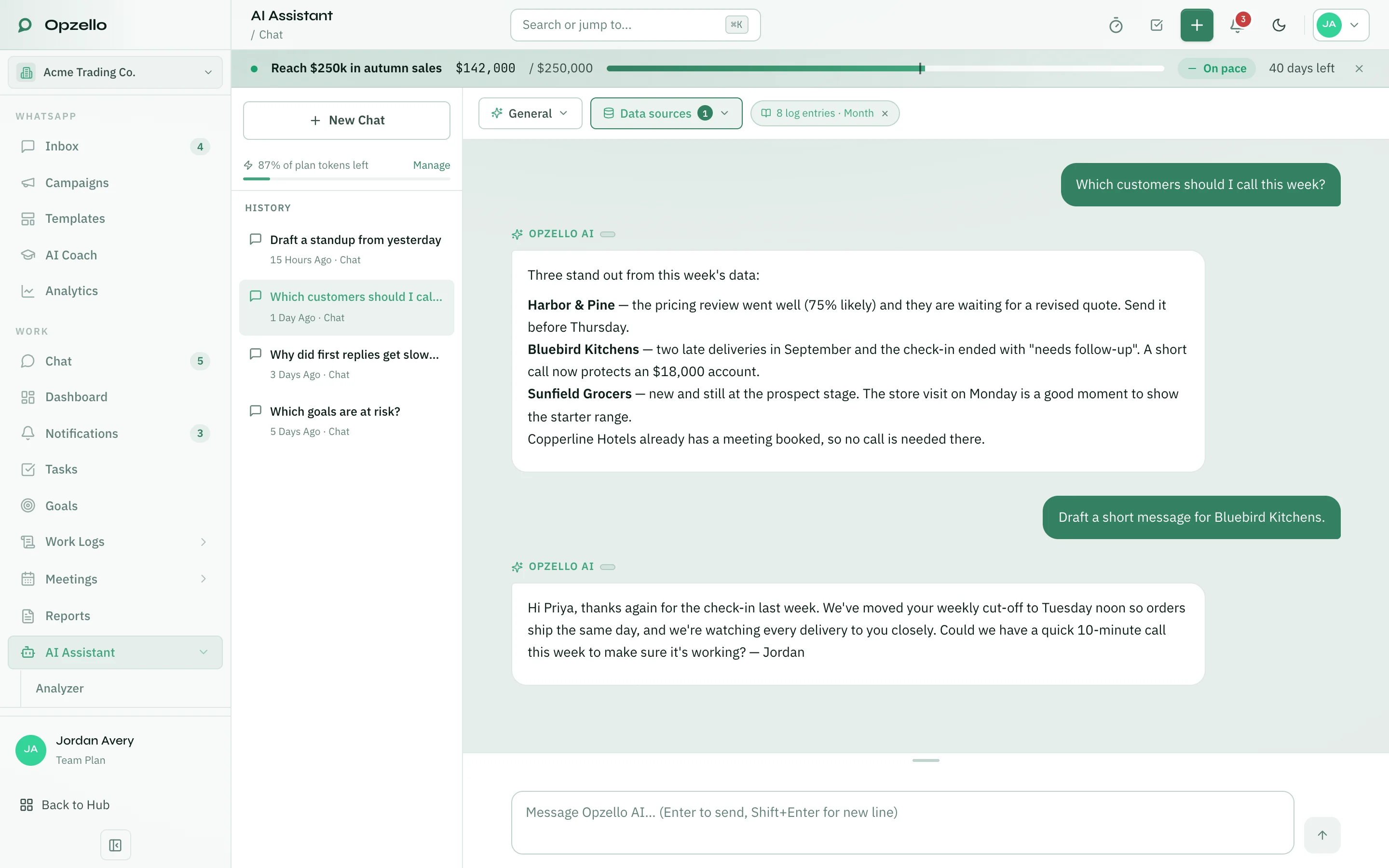
Type in the box at the bottom and press Enter to send (Shift+Enter starts a new line). On a phone, Enter starts a new line, so use the send button. The answer appears word by word. To stop an answer early, click the stop button.
Not sure what to ask? On a new chat, click one of the example questions, such as "Where should I focus this week?".
Questions about Opzello
You can also ask how to do something in Opzello, where a feature is, or what it does — for example "How do I invite a teammate?" or "How do automatic reports work?". The AI answers from these help articles: it tells you which page to open and what to click, links the page so you can go straight there, and ends with a link to the help article. Help articles open in a new tab, so your chat stays where it is.
If something is not covered in the help articles, the AI says so instead of guessing. For something only the Opzello team can check, such as a payment on your account, it points you to Support in the Hub.
Modes
The button at the top left of the chat picks the mode:
- General — everyday questions about your work.
- My Logs — answers focused on your work logs.
- A role (Developer, Marketing, Sales and the others) — answers focused on the work you logged for that role.
Outside General mode, a small label shows how many log entries the AI can read and for which period.
Data sources
Click Data sources to choose extra data the AI reads with every message:
- Tasks — task status and priorities.
- Meetings — your meeting pipeline and contacts.
- WhatsApp — your WhatsApp conversations. Name a contact to go deeper.
You do not have to turn a source on to ask about it: when your question is about tasks, meetings or WhatsApp, the AI loads that source for that message. Turning a source on includes it in every message, which uses more tokens. If your workspace has a WhatsApp inbox, WhatsApp starts turned on until you change it.
Creating things from the chat
When you ask the AI to make a task, goal, work log or meeting, it shows a draft card marked Draft — not saved yet. Check and edit the fields, then click the create button (for example Create Task), or click Dismiss. Nothing is saved until you click create.
Your conversations
Click New Chat to start a new conversation. Your past conversations are listed under History on the left side of the chat; click one to continue it. For a new topic, start a new chat: in a long conversation, only the most recent messages are sent to the AI.
What the AI can see
The AI uses only your own data in the workspace you are in, and only the parts your role can open. It never sees other workspaces, other people's private data, or your password, and it will not repeat keys or other secrets even if one was typed into a note. Do not paste passwords or keys into the chat.
Use Ask AI for quick questions. For a full review of a period, use the Analyzer.
Thank you — that helps us improve the docs.