The Reports library
The calendar, the list, filters and what you can do with a report
Last updated 2026-10-05
Every report in Opzello is a saved snapshot of one workspace. It is made once, from that workspace's numbers only, and then kept. Opening it later, printing it or downloading the PDF always shows exactly what it said when it was made.
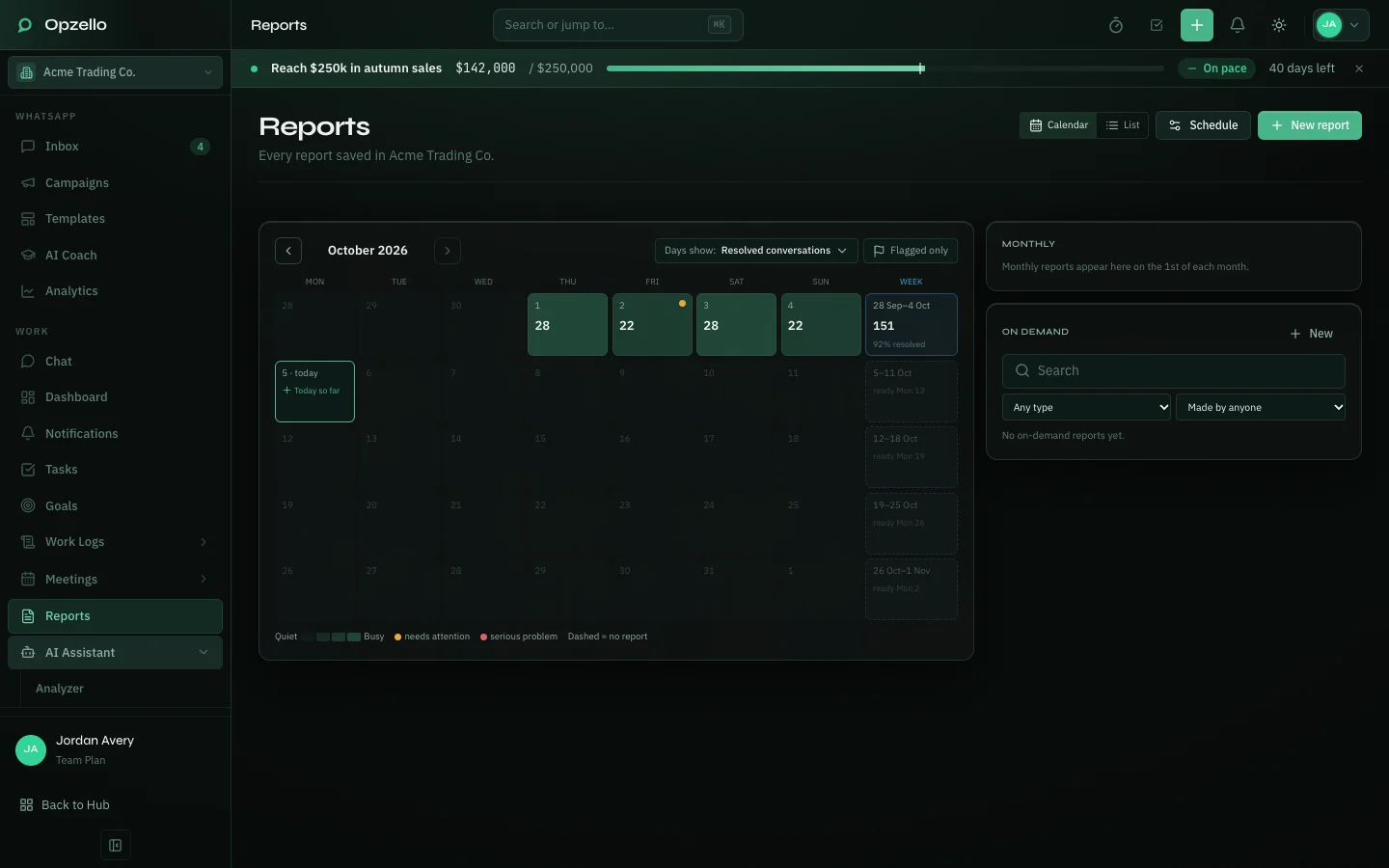
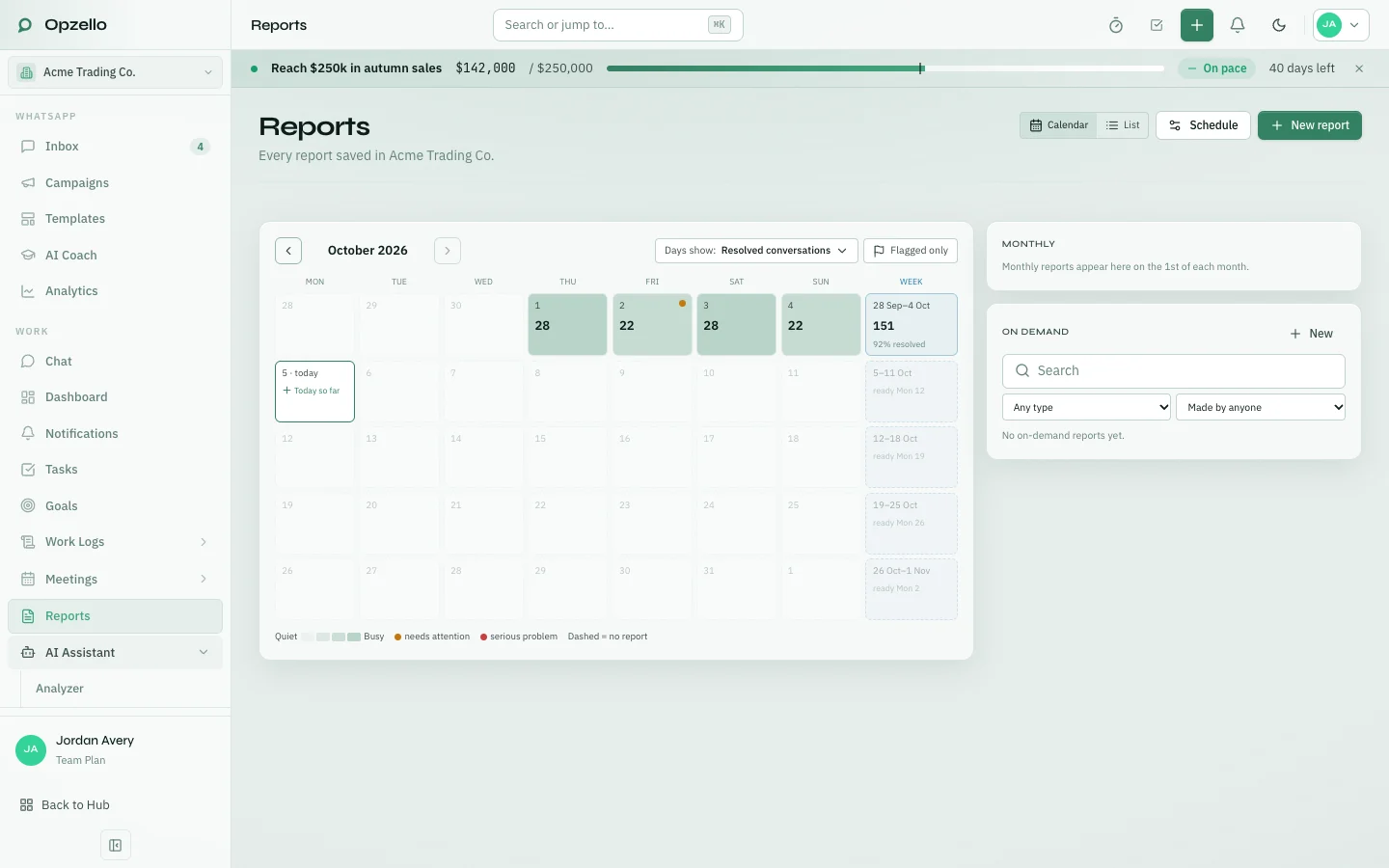
Open Reports from the sidebar. What you see depends on your role's Reports access. Who can see reports explains the levels.
The calendar
The calendar shows one month of daily reports, with each week's report in the Week column at the end of the row.
- Days show picks the number each day displays: resolved conversations, conversations, reply time, tasks done, team active time or deals won.
- A dot marks a day that needs attention. Flagged only hides the rest.
- Click a day to preview its headline and key numbers, then Open report.
- A past day with no report offers Create one. Today offers Today so far, a report of the day up to now.
- A day with no activity at all says quiet · no report.
The side panel lists the monthly reports and the reports people made from New report. On a phone, the calendar becomes a list of days.
The list
Switch Calendar | List to see every report as a list. The tabs split it into All, Daily, Weekly, Monthly and On demand. Filter by type, by who the report is about, by who made it, automatic or made by hand, Flagged and Pinned, or search the titles.
Select several reports to pin, unpin or delete them together.
Inside a report
- AI summary: a headline, a short summary, and three columns: Highlights, Needs attention and Next actions. It is written only from the numbers in the report. + Create task turns a next action into a task.
- Key numbers: six numbers, each compared with a usual day, the week before, the month before or the same number of days before. Daily reports add a small trend of the last 14 days.
- Sections: charts and tables for each part of the report. The contents list on the left jumps between them.
At the top of a report you can Download PDF, Print or Copy link. The ⋯ menu has Regenerate (rebuild it with today's data), Pin and Delete, when your role allows them.
Thank you — that helps us improve the docs.