Workspace Overview
Creating, configuring, and managing your workspace
Last updated 2026-11-01
A workspace is the shared environment that connects your account to your team's data. All work logs, goals, tasks, meetings, and modules live inside a workspace.
You can belong to more than one workspace — as an owner of some and a member of others. Your Hub (see Hub → Hub Overview) is where you see and switch between all of them; only one workspace is "active" at a time within the app itself.
Creating a Workspace
First-time users who are not joining an existing workspace are guided through workspace setup immediately after signup. You can create more workspaces later from the Hub with New Workspace. Either way, you give:
- Name — your company or team name.
- Description — optional context shown to members.
- Work roles — up to 3.
See Workspace → Setup Wizard for the full walkthrough. Once created, you are the workspace owner and can invite others.
Inviting Members
Open Workspace Settings → Members, click Invite member, enter a colleague's email address and pick a role. See Workspace → Members & Invites and Workspace → Roles & Permissions for the full detail.
Workspace Settings
Open Workspace Settings from the sidebar. The menu on the left groups its pages:
| Group | Pages | Who sees it |
|---|---|---|
| Workspace | General, Features | The owner |
| People & access | Members, Roles | The owner |
| AI & usage | AI Budget | The owner |
| Developers | API Keys (Team plan) | The owner |
| Just for you | Your work roles, Quick Launch | Everyone in the workspace |
The pages under Just for you only change things for you. Members see only that group. On a phone the menu is a row of buttons at the top of the page; swipe it sideways to see them all.
On a wide screen a Good to know column beside each page gives a few short tips and a link to the matching help article.
Saving your changes
When you change a form on a settings page (General, Features, AI Budget, Your work roles, Quick Launch), a bar appears at the bottom: You have unsaved changes. Click Save changes to keep them or Discard to undo them. On a computer, ⌘S (Mac) or Ctrl+S also saves. If you try to leave the page first, Opzello asks whether to leave without saving.
Actions on a single row, like changing a member's role, revoking an invitation or revoking an API key, happen right away and do not use the bar.
General
Needs attention shows at the top of General when something needs you. It lists:
- Seats running low: two or fewer seats left. Seats are shared by all the workspaces you own, so the count can include people from your other workspaces. It does not show on a one-seat plan. View members opens Members.
- People close to their AI limit: anyone who has used 90% or more of their monthly AI limit. Change limit opens AI Budget.
- Invites waiting: invitations sent more than two days ago that nobody has accepted. View invites opens Members.
When nothing needs you, the list does not show.
Under Workspace profile you set:
- Workspace image: shown in the workspace switcher and on the Hub for everyone in the workspace. Click Change image to pick one, or Remove to go back to initials. It saves as soon as you pick it.
- Name: what your team calls the workspace, up to 100 characters.
- Description: one short line so new people know where they are, up to 500 characters.
Visibility
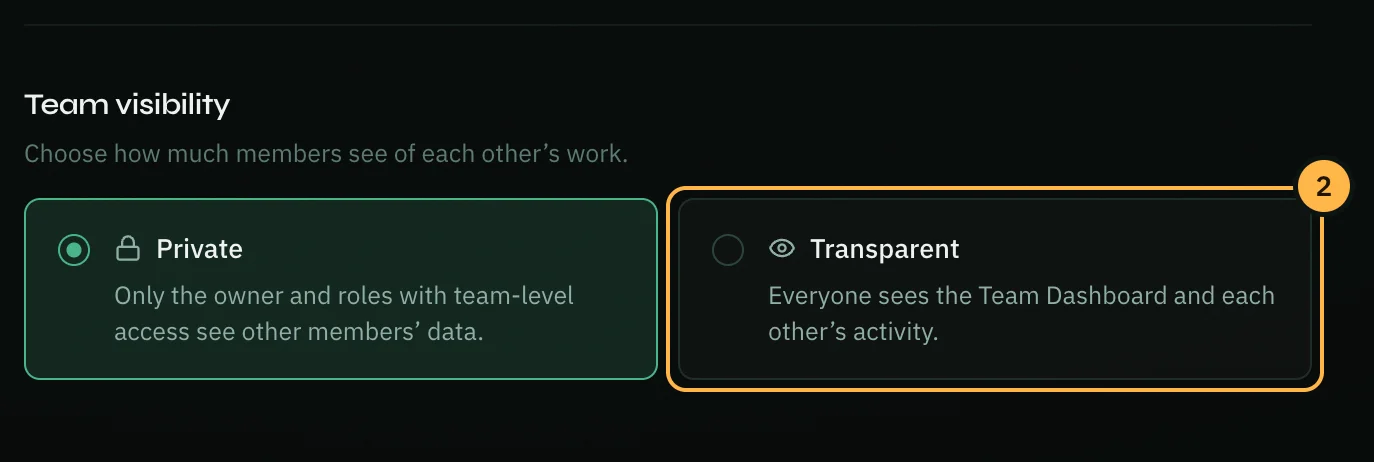
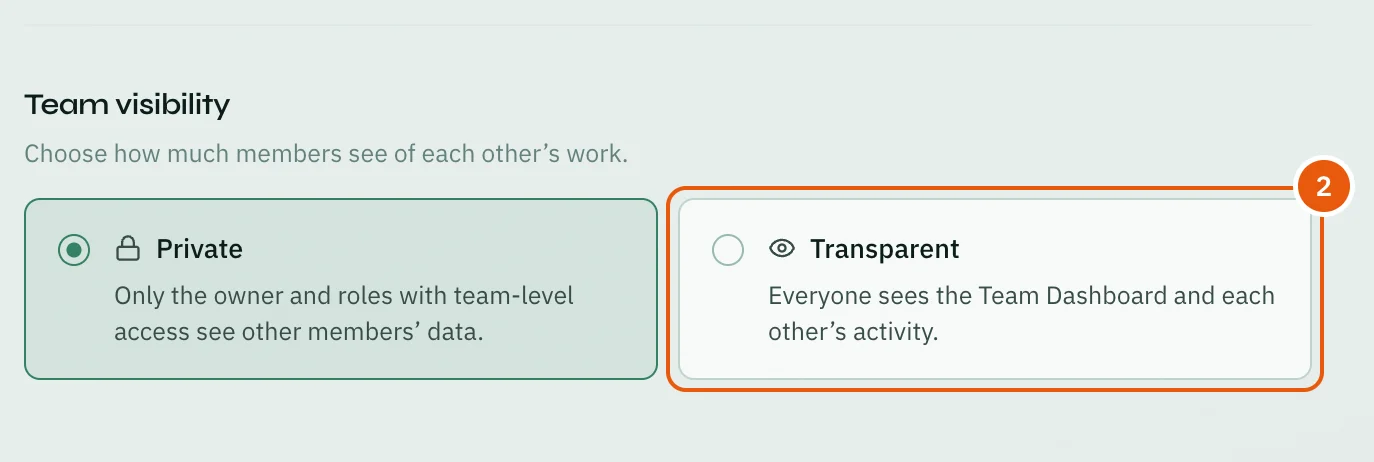
Visibility decides who can see the Team Dashboard and other members' activity:
- Private: only the workspace owner and roles you give team-level access can see other members' data.
- Transparent: all members can view the Team Dashboard and each other's activity.
To change it:
- Open Workspace Settings → General.
- Under Team visibility, choose Private or Transparent.
- Click Save changes in the bar at the bottom.
Feature Controls
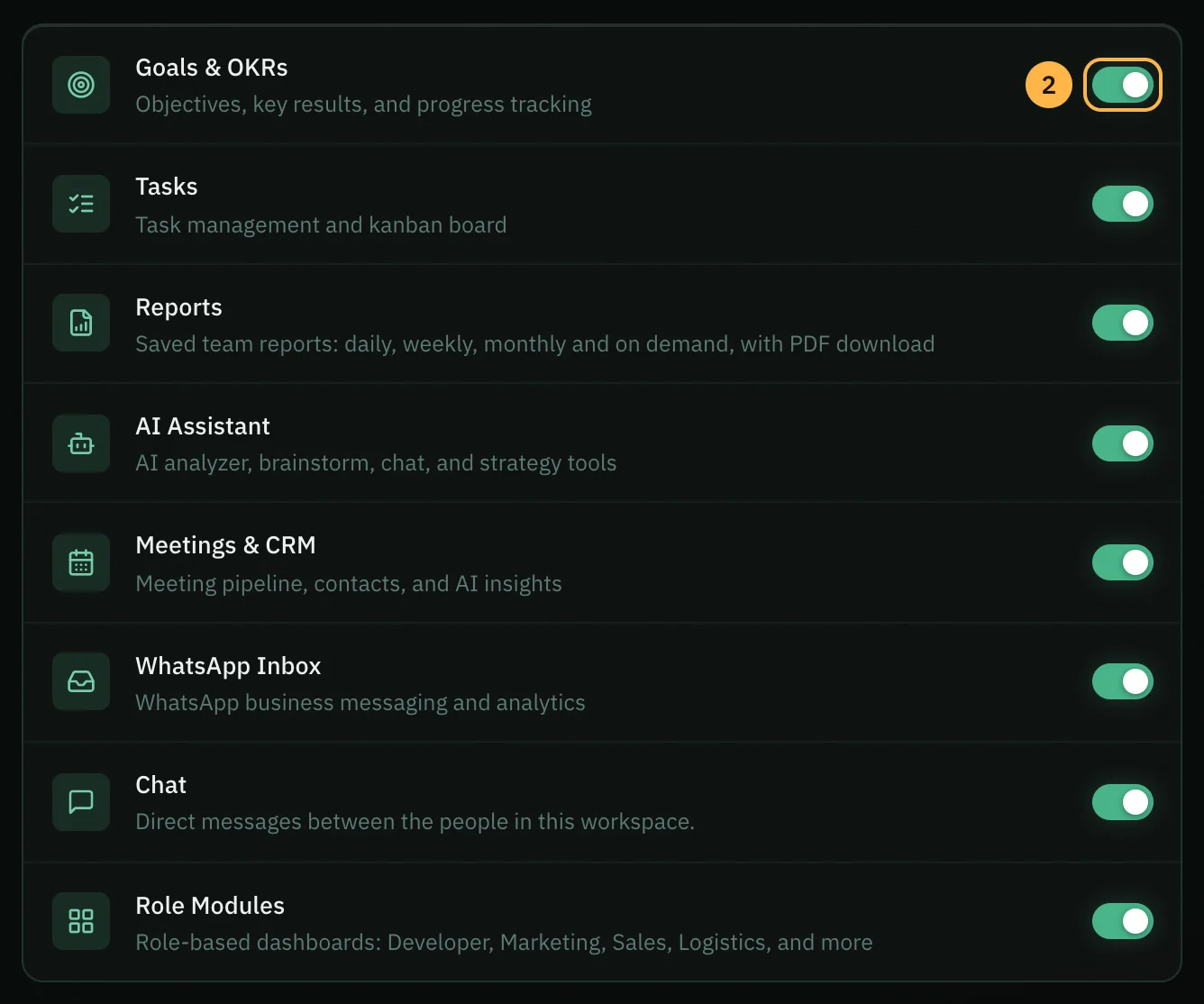
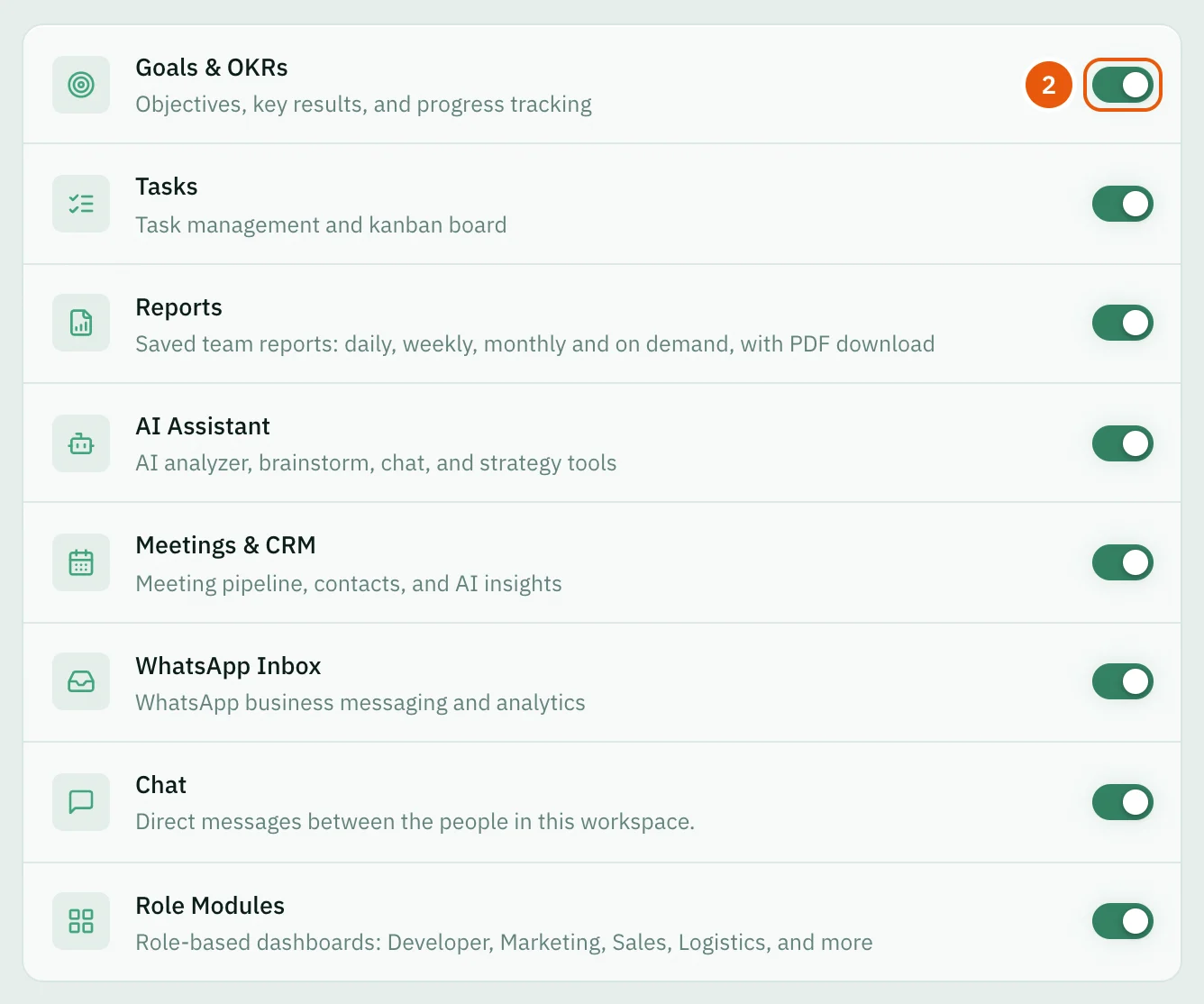
Turn whole sections on or off for everyone in the workspace:
| Feature | What it controls |
|---|---|
| Goals & OKRs | Objectives, key results, and progress tracking |
| Tasks | Task management and kanban board |
| Reports | Saved team reports: daily, weekly, monthly and on demand, with PDF download |
| AI Assistant | AI analyzer, brainstorm, chat, and strategy tools |
| Meetings & CRM | Meeting pipeline, contacts, and AI insights |
| WhatsApp Inbox | WhatsApp business messaging and analytics |
| Chat | Direct messages between the people in this workspace |
| Role Modules | Role-based dashboards: Developer, Marketing, Sales, Logistics, and more |
- Open Workspace Settings → Features.
- Turn a feature on or off with its switch.
- Click Save changes in the bar at the bottom.
Disabled features are hidden from all member sidebars once you save. Re-enabling restores access to all existing data. To control access per person instead, use roles (see Workspace → Roles & Permissions).
AI Budget
Your plan's AI tokens go into one shared pool for the whole workspace. AI Budget shows how much of the pool is used this month, and sets how much each person can use:
- Default monthly limit: the monthly limit for anyone without their own limit.
- Per member: type a limit for one person, leave it blank to use the default, or type -1 for no limit. People at 90% or more of their limit are marked Close to the limit.
Click Save changes to keep the new limits. When someone reaches their limit, only AI stops for them until next month; the rest of the app keeps working. See Hub → AI Tokens & Usage.
API Keys
On the Team plan, API Keys lets other tools read your workspace's conversations and contacts. Click Create key, give it a name, and copy the key straight away: it is shown only once. Keys can only read data. Revoke stops a key at once; anything using it stops working. The page also shows the base address to send requests to.
Your work roles and Quick Launch
Every member can open these two pages. Your work roles sets the kinds of work you do in this workspace (see Account → Work Roles & Weekly Goal). Quick Launch sets up your own floating bar of shortcuts: turn it on or off, pick where it sits, choose and order your shortcuts, and show or hide the ? help button. Nobody else's bar changes.
Leaving or Deleting
There is no button to leave a workspace yourself: ask the workspace owner to remove you (see Workspace → Members & Invites). Workspace owners cannot leave — to hand a workspace to someone else, contact our support team.
To delete a workspace, the owner opens Workspace Settings → General, clicks Delete workspace under Danger zone, and types the workspace name to confirm. Deletion is permanent: export your data first from Account → Data.
Thank you — that helps us improve the docs.