Logistics Module
Track shipments, their status and on-time delivery
Last updated 2026-11-01
The Logistics module tracks your shipments: the supplier, where each one is going, its status, and when it shipped, is expected and was delivered. It shows how many are late and how often deliveries arrive on time.
Open the module
The Modules group in the sidebar shows a page for each of your work roles. To pick your roles, click your name at the bottom of the sidebar and choose My work roles. Pick up to 3 roles, then click Save changes in the bar at the bottom. You can also find this page in Workspace Settings → Your work roles. Roles belong to one workspace, so you can pick different roles in each workspace.
You can open any module, even one that is not your role, from Modules → All Modules. If you don't see Modules in the sidebar, the workspace owner has turned off Role Modules in Workspace Settings → Features.
The dashboard
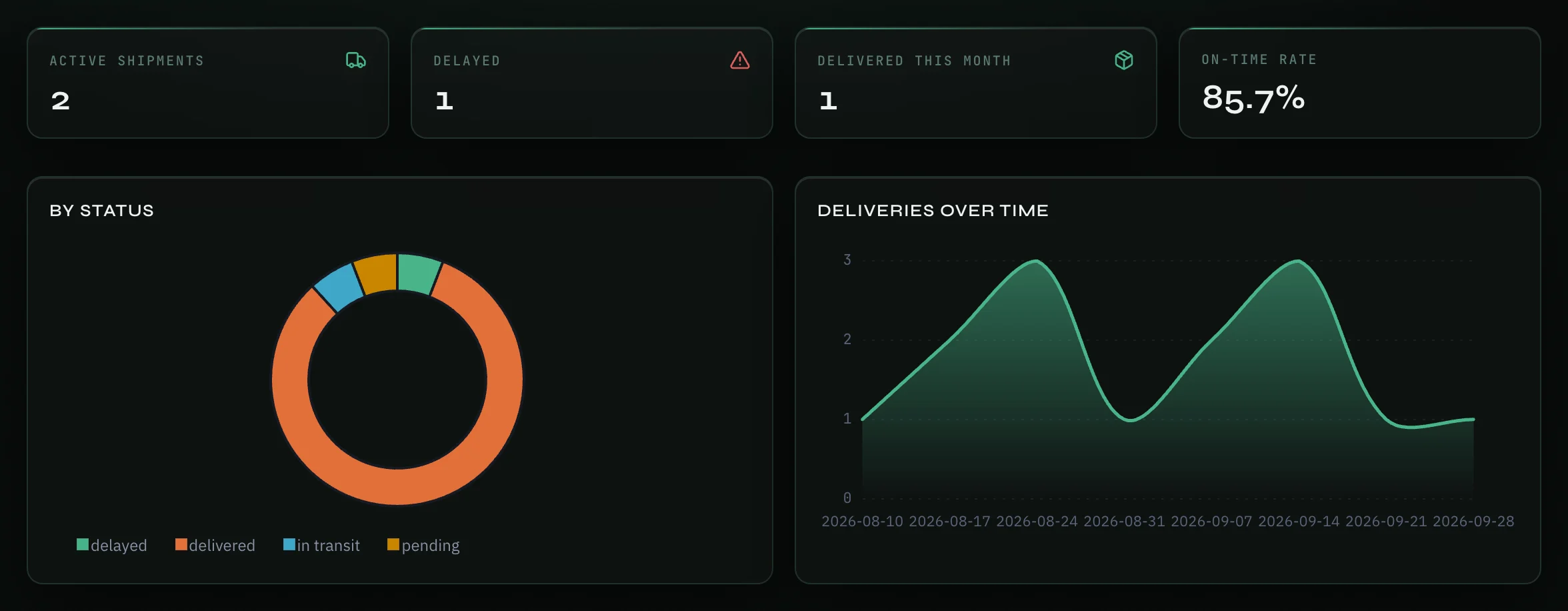
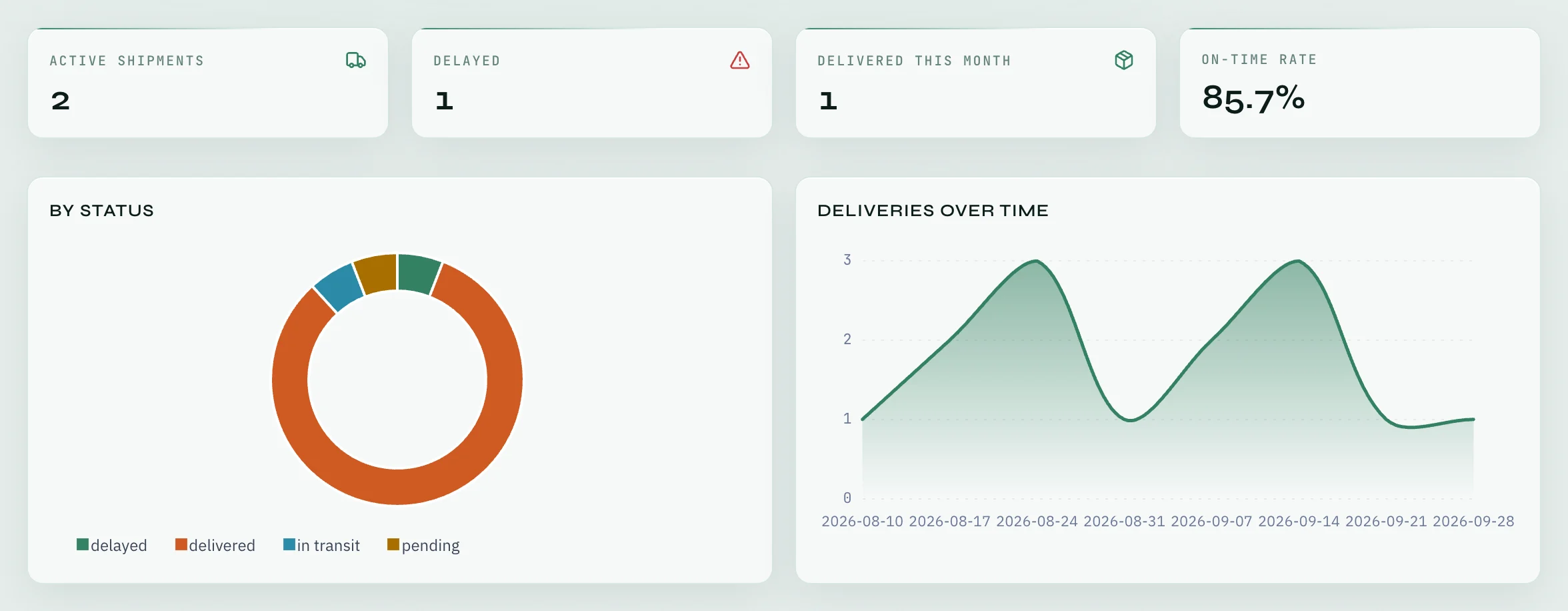
The top of the page has four numbers:
- Active shipments — shipments that are pending or in transit.
- Delayed — shipments with the status Delayed.
- Delivered this month — shipments whose Delivered date is this month.
- On-time rate — the share of delivered shipments that arrived on or before their Expected date.
Two charts follow: By status, and Deliveries over time, which counts deliveries per week. Under them, the Shipments table lists each shipment with its reference, supplier, destination, status, expected date and its days in transit.
Add a shipment
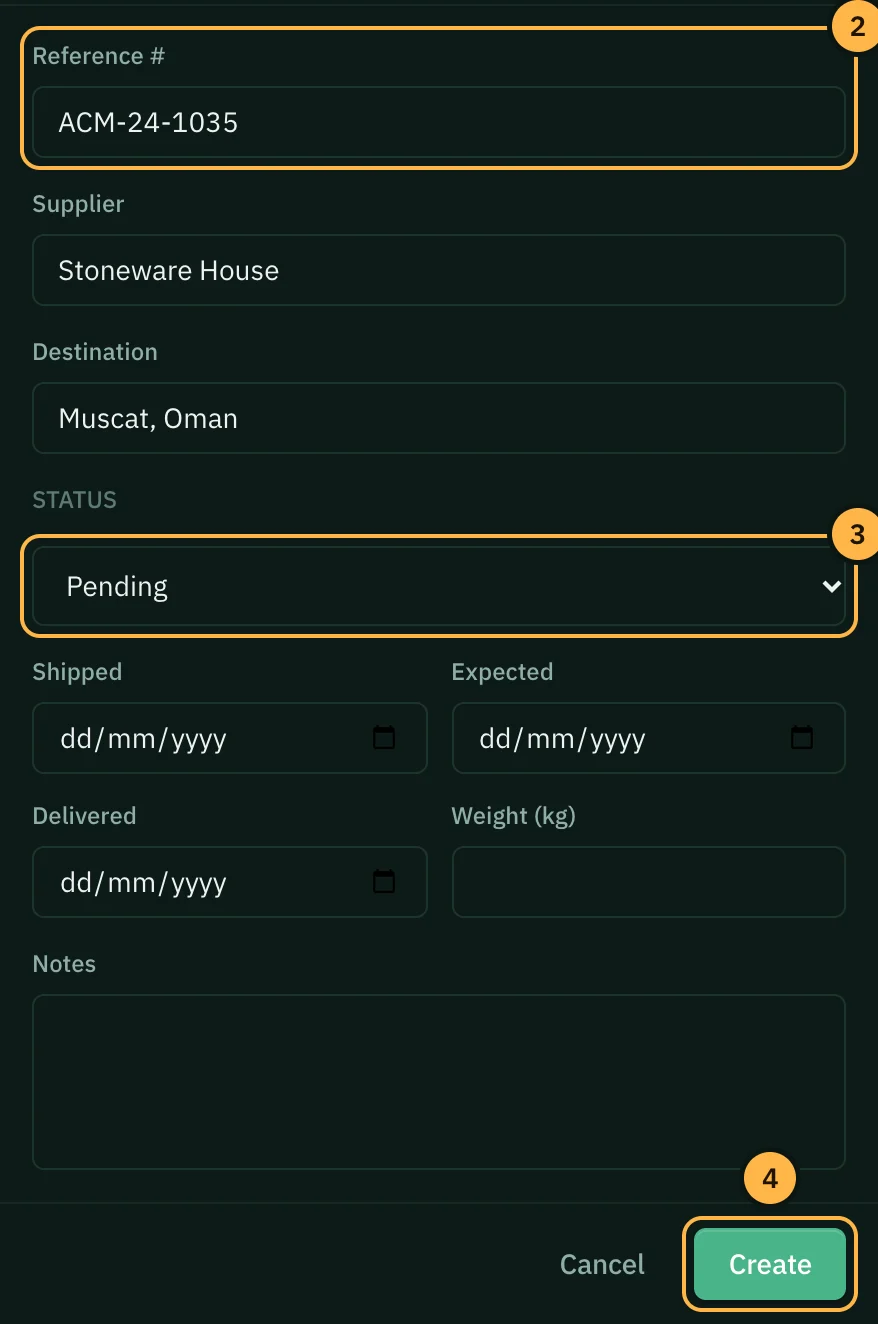
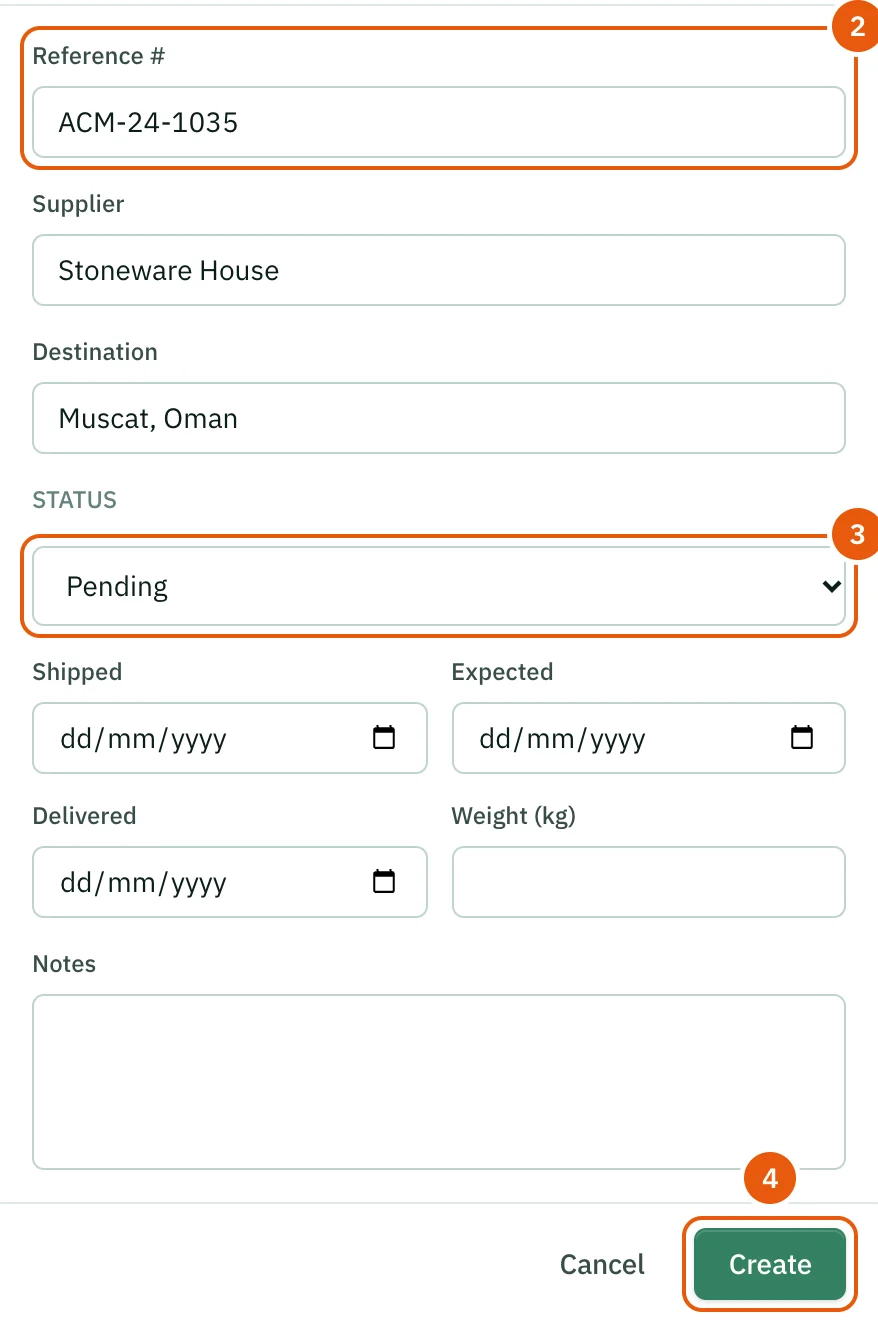
- Click Add Shipment at the top right of the page.
- Type the Reference #, the Supplier and the Destination. All three are required.
- Pick a Status: Pending, In transit, Delivered, Delayed or Cancelled. Then add the dates you know (Shipped, Expected, Delivered), the Weight (kg) and any Notes.
- Click Create.
Update a shipment
To change only the status, pick a new one in the shipment's Status list in the table. To change anything else, click Edit at the end of the row.
When a shipment arrives, click Edit and set the Delivered date as well as the status. Without the date, the shipment does not count in Delivered this month or in the deliveries chart.
Tips
- Always fill in the Expected date. The on-time rate compares it with the Delivered date.
- Write problems such as damage or missing items in Notes, so they stay with the shipment.
- A key result on a goal can track Shipments: the number of your shipments shipped or added during the goal's dates.
- Ask AI at the top of the page opens Ask AI in Logistics mode, so its answers focus on logistics work.
Thank you — that helps us improve the docs.