Tasks
Plan, assign and finish tasks in a list or on a board
Last updated 2026-11-01
The Tasks page keeps the things you and your team need to do, next to your work logs. You can give a task to a teammate, link it to a goal, and log the time when you finish it.
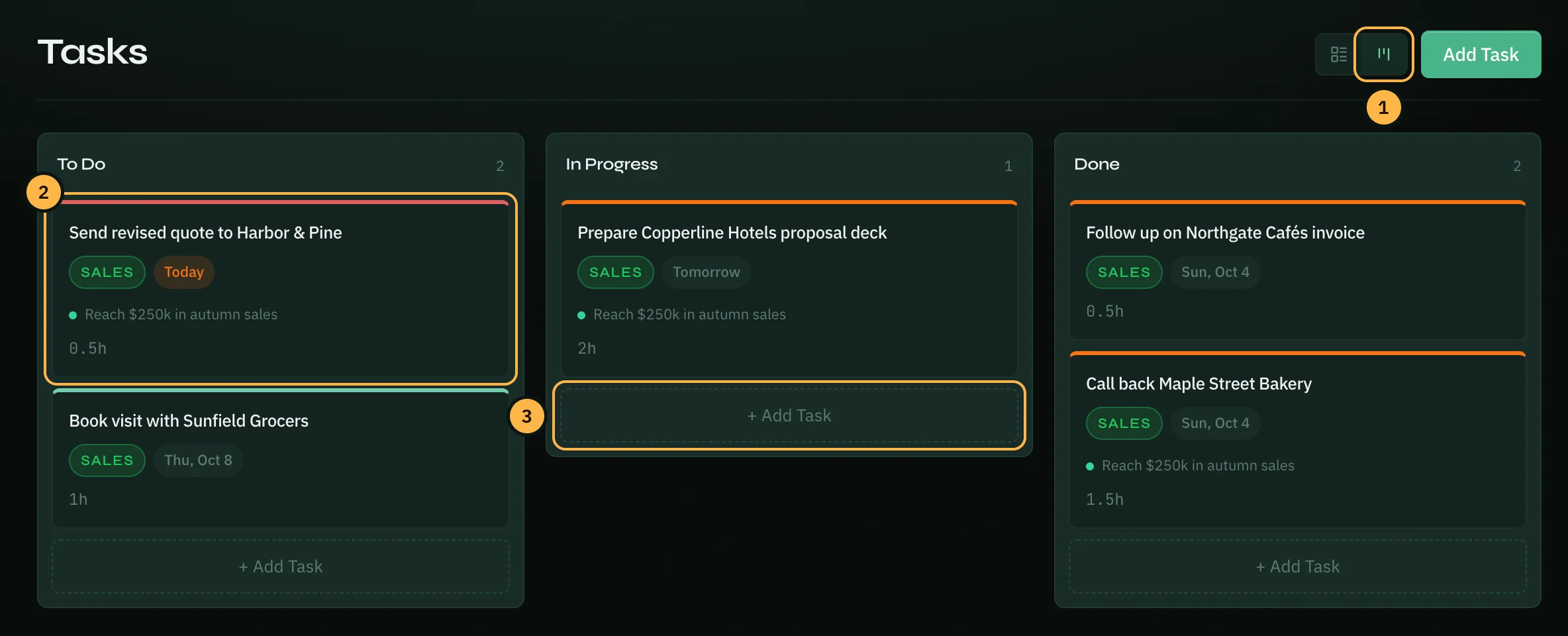
Views
The two buttons next to Add Task switch between the views:
- List view: tasks grouped by due date: Overdue, Due Today, then each coming day, then No Due Date. Each task shows its priority, role, due date, estimated hours and who it is assigned to. The coloured left edge shows the priority.
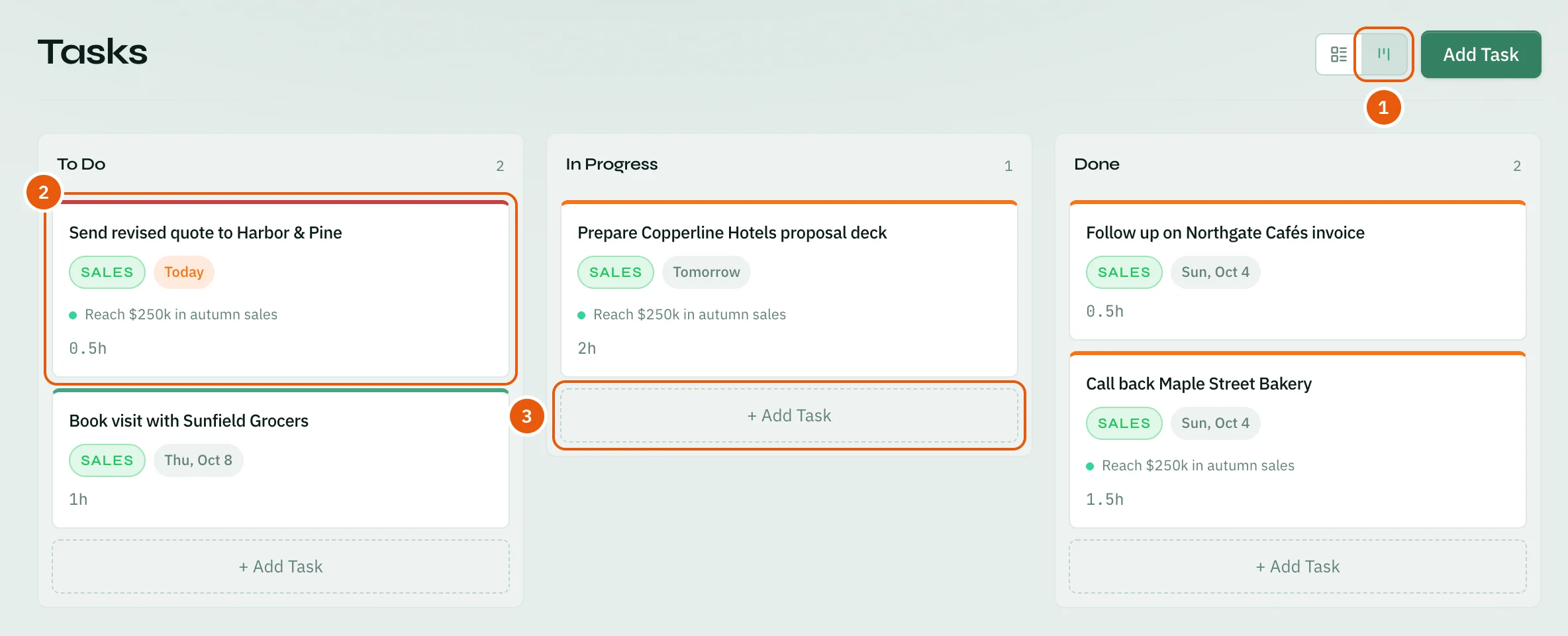
- Board view: three columns, To Do, In Progress and Done.
Use the board
- Click the board button next to Add Task.
- Drag a card to another column to change its status. Click a card to open and edit it.
- Click + Add Task at the bottom of a column, type a title and press Enter to add a task with that status.
Create a task
Click Add Task at the top right. The New Task panel opens.
- Type a Title: what needs to get done. Click Add details to add a description.
- Pick a Role, so the task shows with that role's work.
- Under Assign to, pick a teammate, Me, or Nobody yet.
- Pick a Priority: Urgent, High, Medium or Low.
- Set a Due date, and a Due time if it matters.
- Click Save Task.
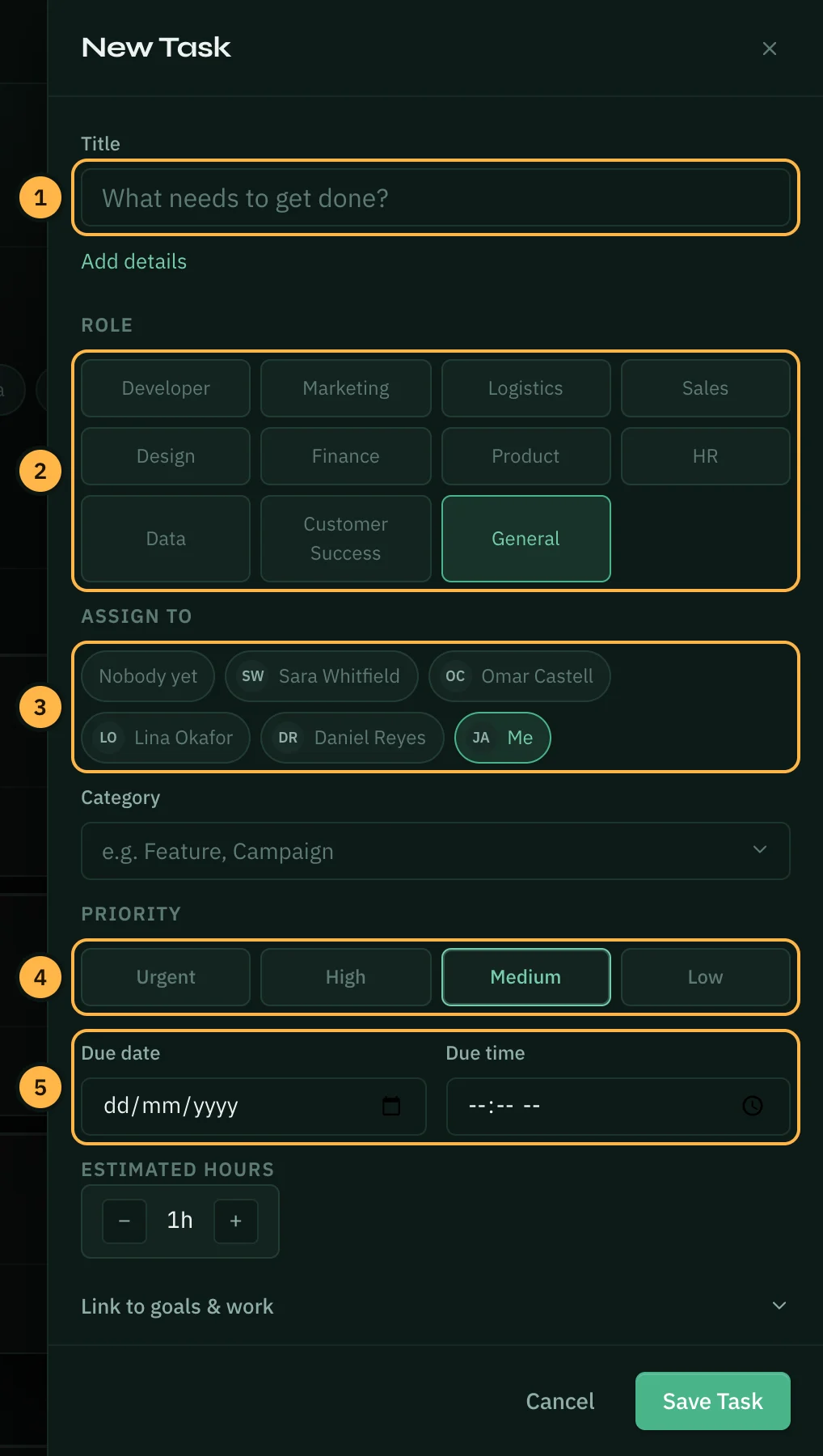
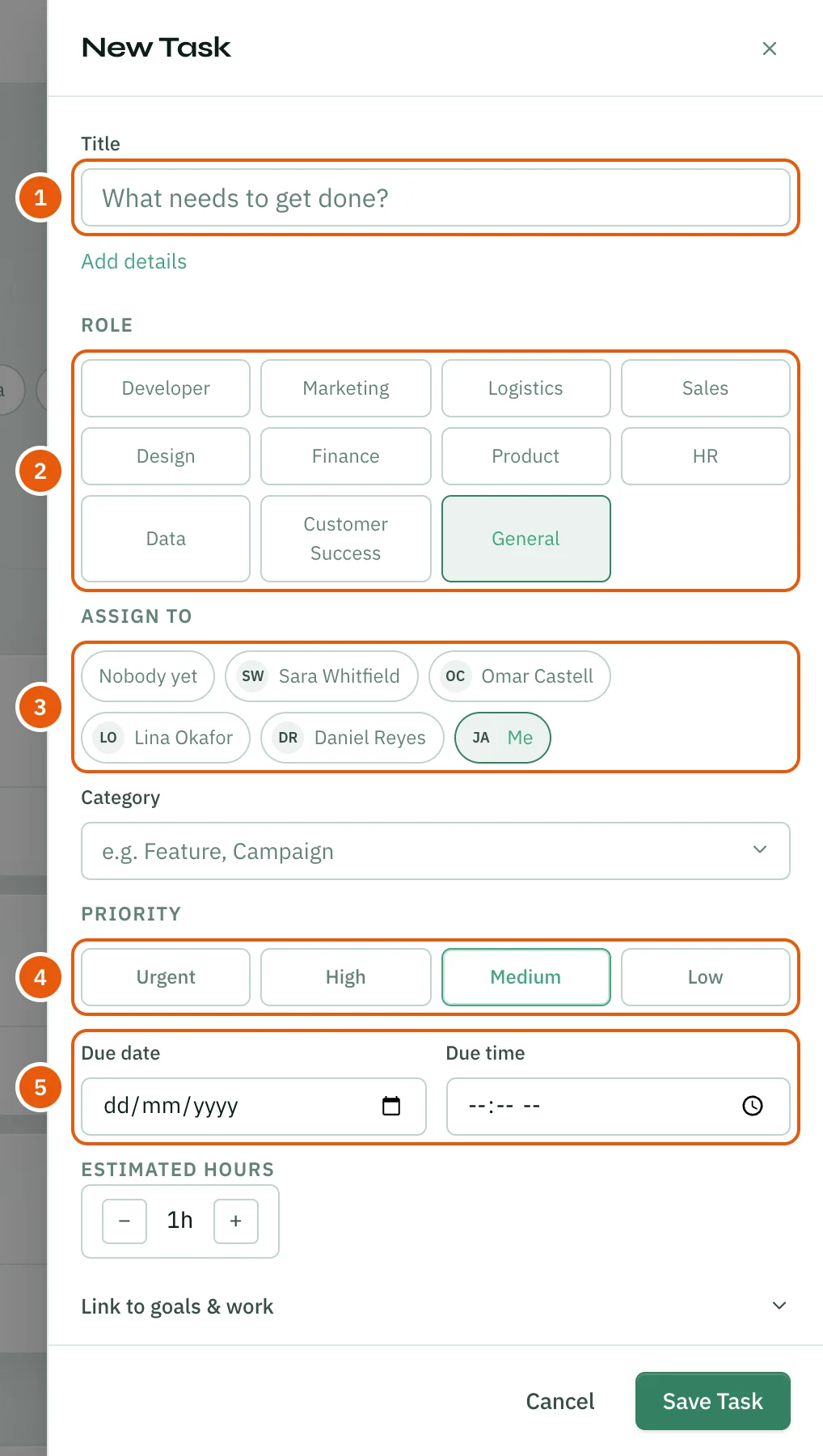
The panel also has a Category, Estimated hours, and Link to goals & work, where you can link the task to a goal and one of its key results.
New tasks start in To Do. Tasks also arrive from other places: AI suggestions, meeting follow-ups and WhatsApp conversations. A task from WhatsApp has a button that opens its conversation.
Find tasks
- Choose whose tasks to see: Everyone, Mine, Assigned to me or Unassigned.
- Click a role to show only that role's tasks.
- Click a priority to show only that priority.
- Switch between To Do, In Progress, Done and All.
- Type in Search tasks… to search titles and descriptions.


Finish a task and log the time
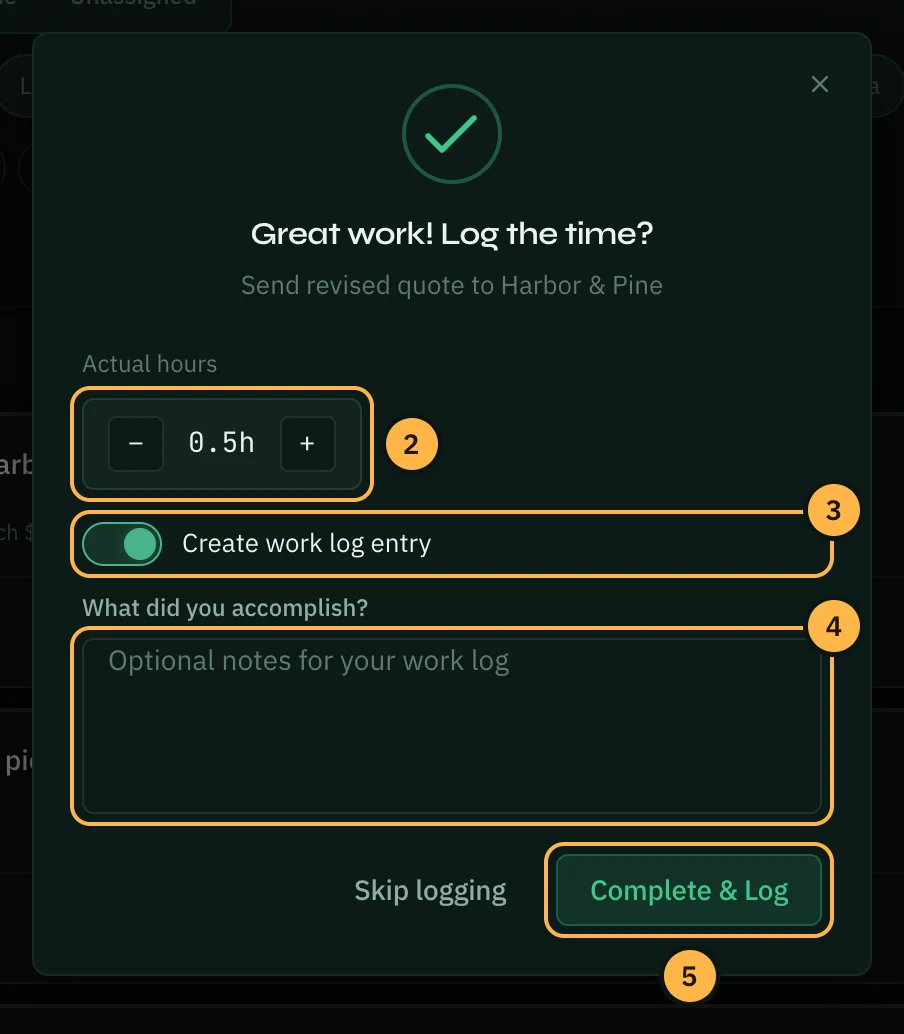
- Click the circle next to a task's title. The Great work! Log the time? window opens.
- Set the Actual hours the task took.
- Leave Create work log entry on to add a work log for this task.
- Under What did you accomplish?, add a short note for the log if you want.
- Click Complete & Log. Or click Skip logging to mark the task done without a log.
Tips
- Keep the board open in stand-ups and drag cards as people talk.
- Link important tasks to a goal, so everyone can see which goal the work serves.
- Use Assigned to me each morning to see only your own work.
Thank you — that helps us improve the docs.