Contacts CRM
The companies and people you meet, and their meeting history
Last updated 2026-11-01
Meetings → Contacts lists every company you meet. It is a simple contact list for small teams, not a full CRM.
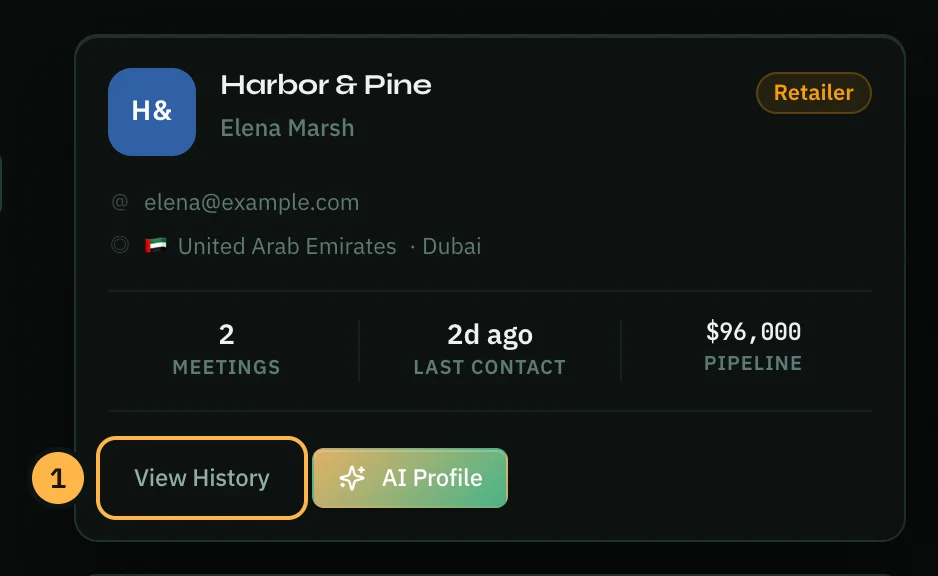
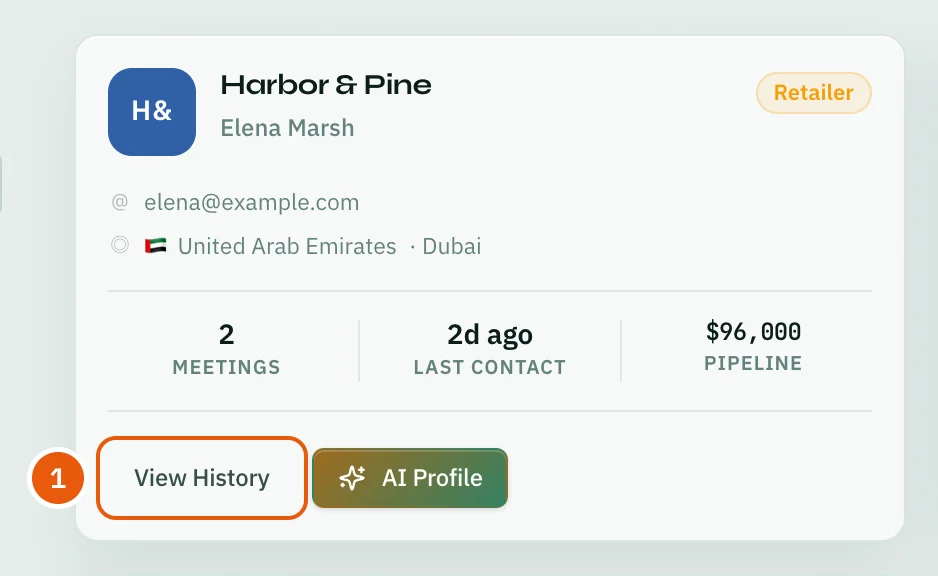
Each card shows the company, the contact person, their email and location, and three numbers: how many meetings you have had, when you last met, and the pipeline value of those meetings. The totals at the top count your contacts, the active pipeline and the countries they are in.
To find a contact, type in the search box at the top or use Filters on the left: business type, region and country. Export downloads the contacts you see as a CSV file.
Open a contact
- On a contact card, click View History.
- Overview shows the contact's details, company details and notes. To change one, point at it and click the pencil that appears.
- Meeting History lists every meeting with this company. Click one to open it.
- AI Profile sums up the relationship: its stage, how likely a deal is, key signals and a recommended next action. It uses your workspace's AI tokens. Click Refresh to make a new one after more meetings.
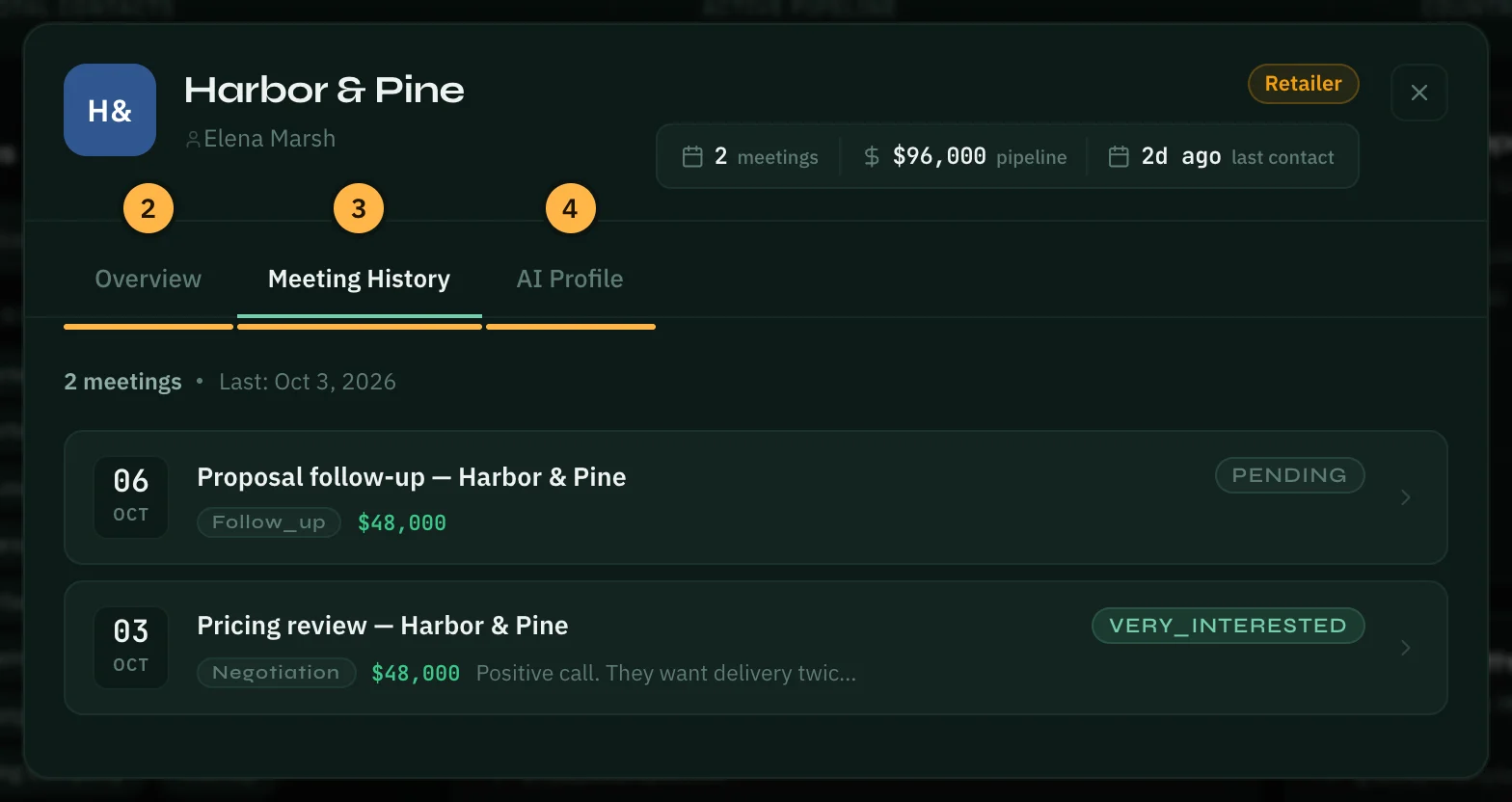
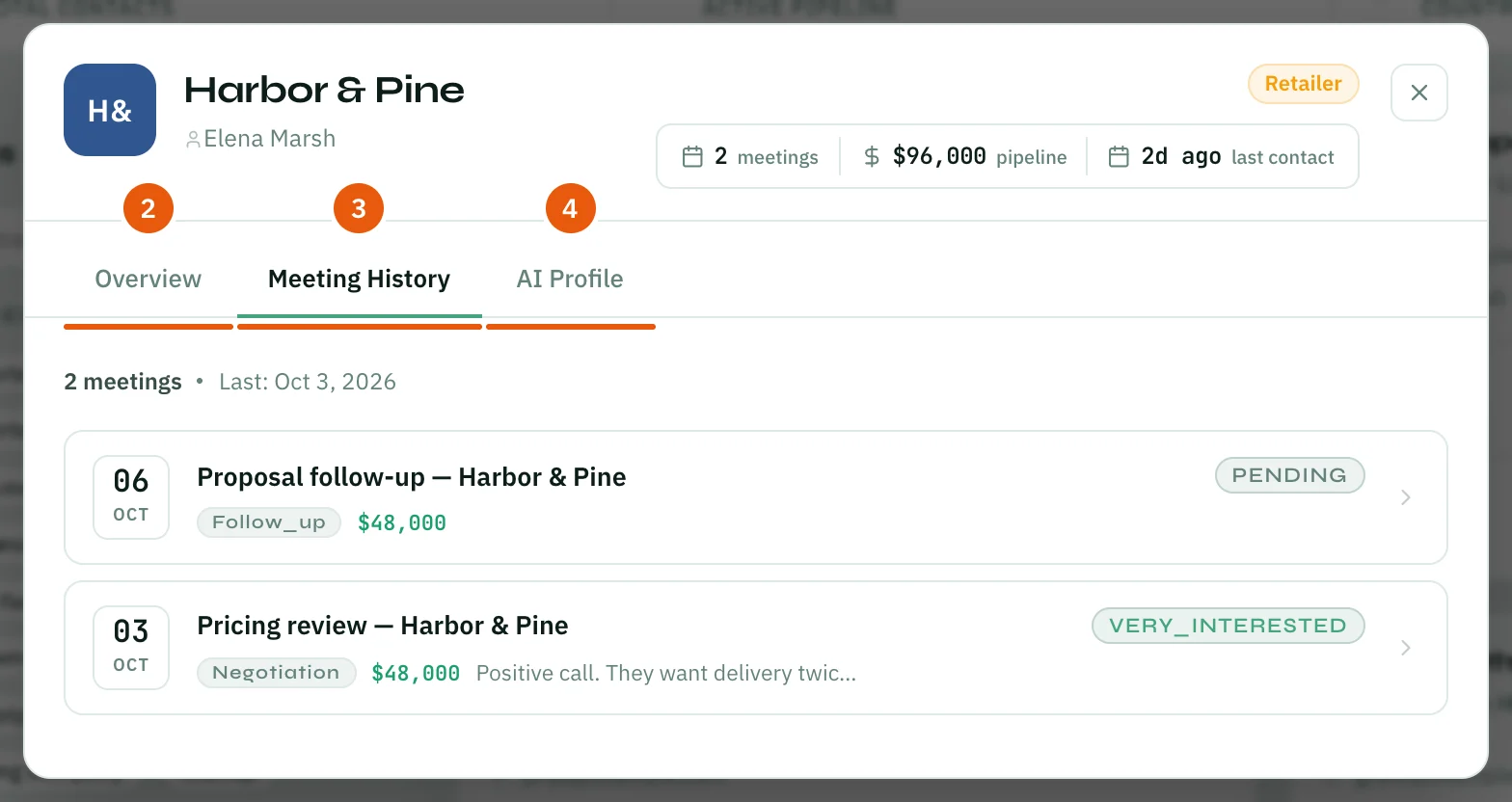
The AI Profile button on a card opens the same window on the AI Profile tab.
Add a contact
A contact is added for you when you log a meeting with Save as contact on. To add one without a meeting:
- Click Add Contact at the top right.
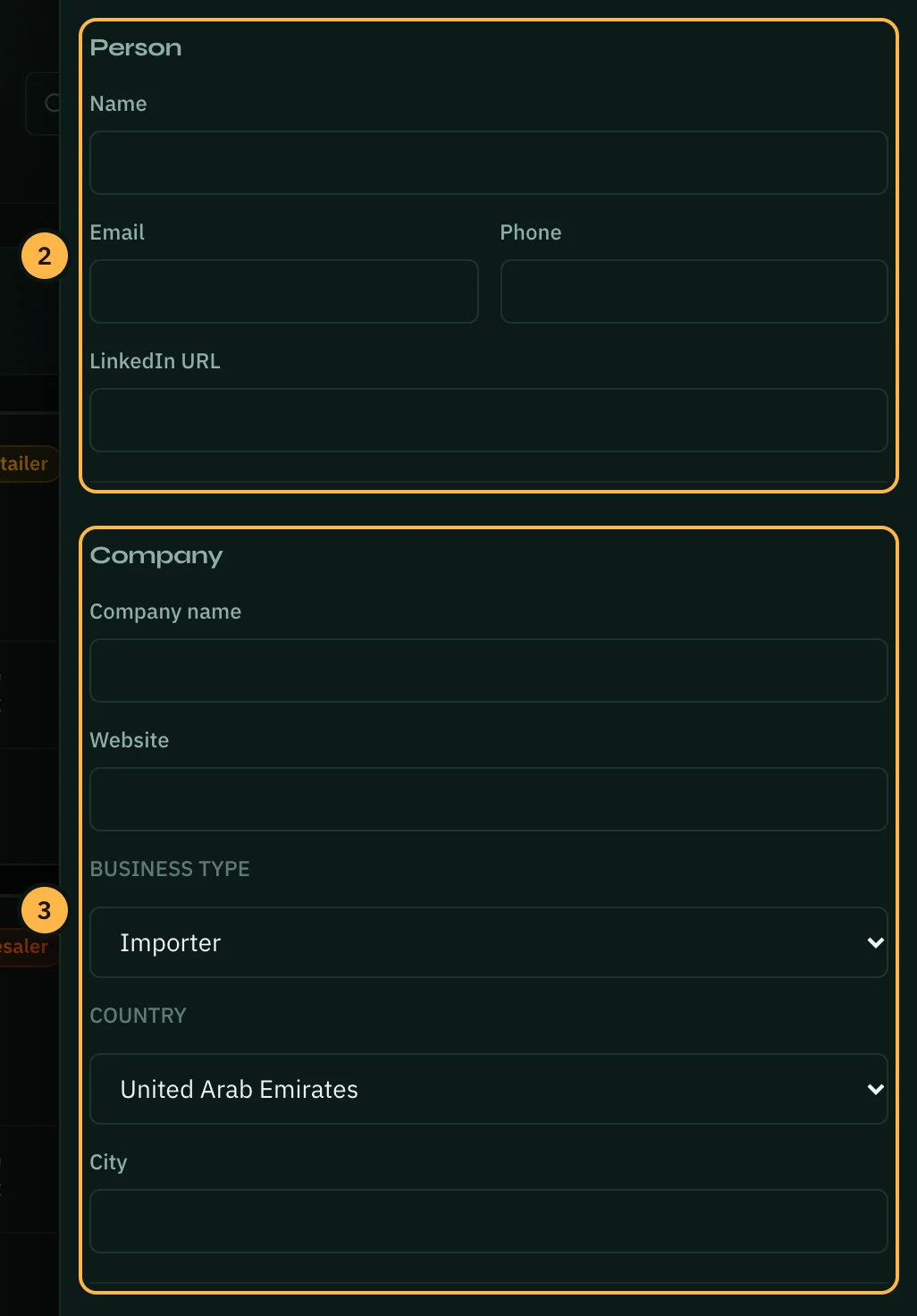
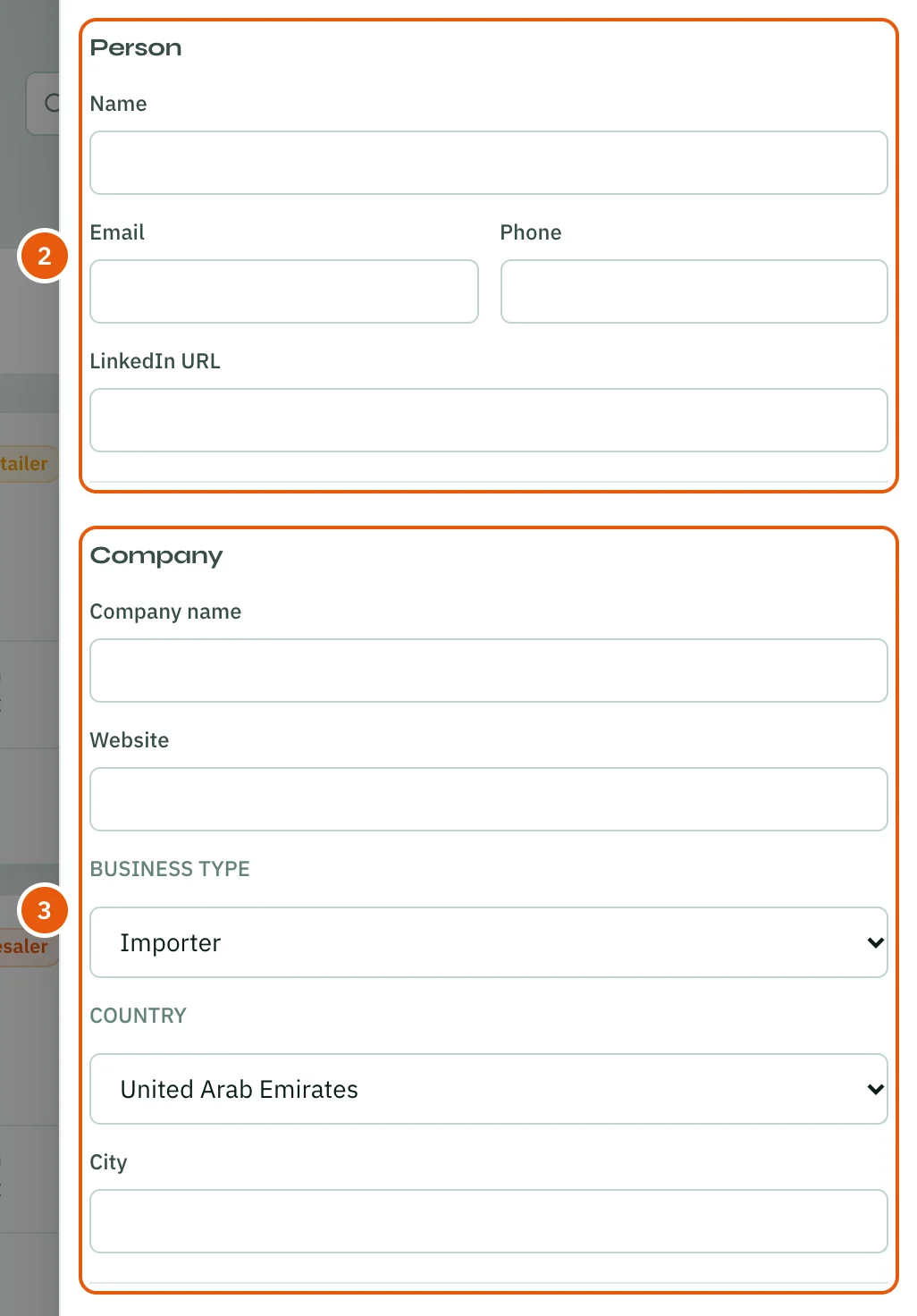
- Under Person, fill in the Name, Email, Phone and LinkedIn URL.
- Under Company, fill in the Company name, Website, business type, country and City.
- Add any Notes.
- Click Create.
Contacts belong to your workspace. AI features only read them when you run them, for example AI Profile.
Thank you — that helps us improve the docs.