Key Results
Metrics, targets, and automatic progress tracking
Last updated 2026-11-01
Key results make goals measurable. Each key result has a title, a type, a target, an optional unit, and a source: where its number comes from.
Set up a key result
You set key results when you create or edit a goal, under Key Results in the goal panel.
- Type what you measure, for example "Closed sales".
- Pick the type: Number, Percentage, Currency or Yes/No.
- Set the Target and, if you want, a Unit such as "clients" or "USD".
- Under Where does the number come from?, pick a source, or I’ll update it myself.
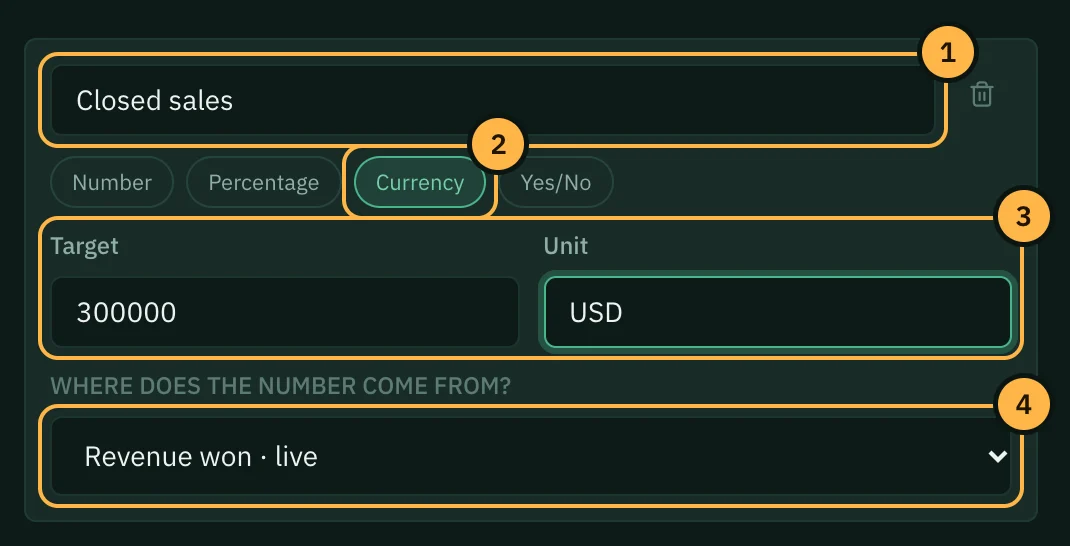
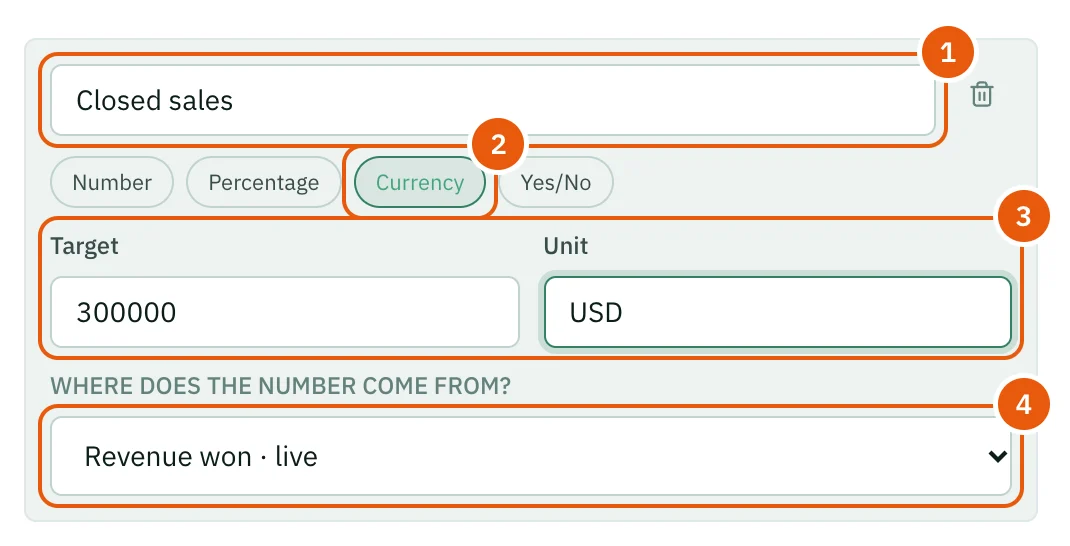
Click Add Key Result to add another. The bin icon removes one; a goal always keeps at least one.
Types:
- Number — raw counts (visits, calls, accounts)
- Percentage — rates and ratios
- Currency — money, shown in dollars
- Yes/No — done or not done
Where the number comes from
- Deals (live) — revenue won, deals closed, pipeline added or win rate.
- WhatsApp inbox (live) — chats resolved, new contacts (team goals only), first reply time or average CSAT.
- Work activity (personal goals only) — work logs, hours logged, meetings held, deals won in meetings, campaign revenue, campaign conversions or shipments. It counts the goal owner's own activity between the goal's start and end dates.
- I’ll update it myself — you type the value. You can also link records to it; see Goals → Linking Work to Goals.
Live sources count only what happens between the goal's start and end dates, in the workspace owner's timezone, and update as the work happens.
Lower is better. First reply time is a number you want to go down. When you pick it, the panel asks Where it starts today. Progress then runs from that number down to your target.
How progress is counted
A key result's progress is its current value divided by its target, from 0% to 100%. A Yes/No key result is 0% until it is done, then 100%. A "lower is better" key result measures how far it has come down from where it started.
The goal's own progress comes from its key results:
- A team goal follows its first key result. That is the headline number on the Goals page, the strip and TV mode. Put the number that matters most first.
- A personal goal takes the average of all its key results.
Each key result also gets a pace status — On pace, Behind pace or At risk, and Completed at 100% — by comparing its progress with how much of the goal's time has passed. Behind pace or At risk is a reason to act early, not a surprise at the end of the quarter.
Update a key result by hand
- On the Goals page, click Update on the key result. On a goal's own page, click the key result to open it, then Update value.
- Type the New value. This replaces the current value; it is not added to it.
- If you want, say What happened? in a few words.
- Click Save.
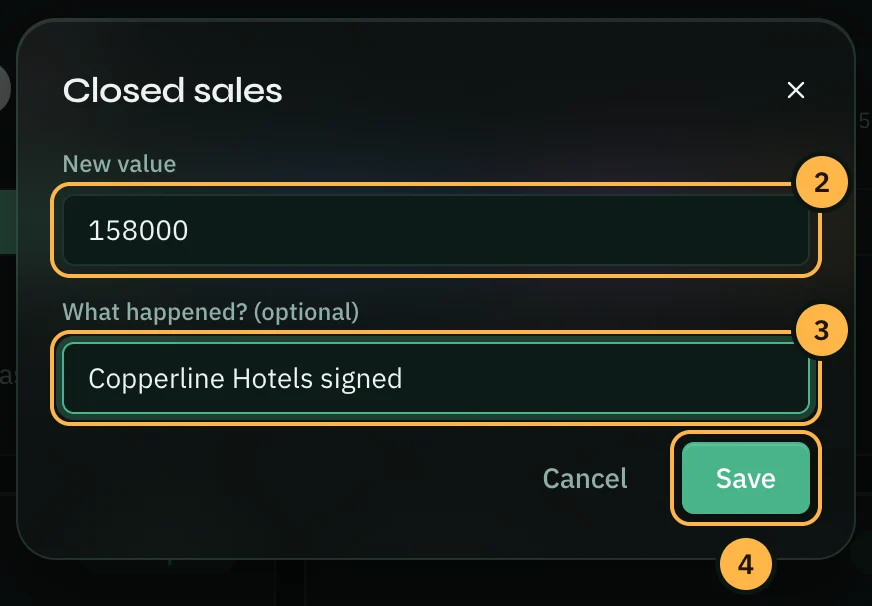
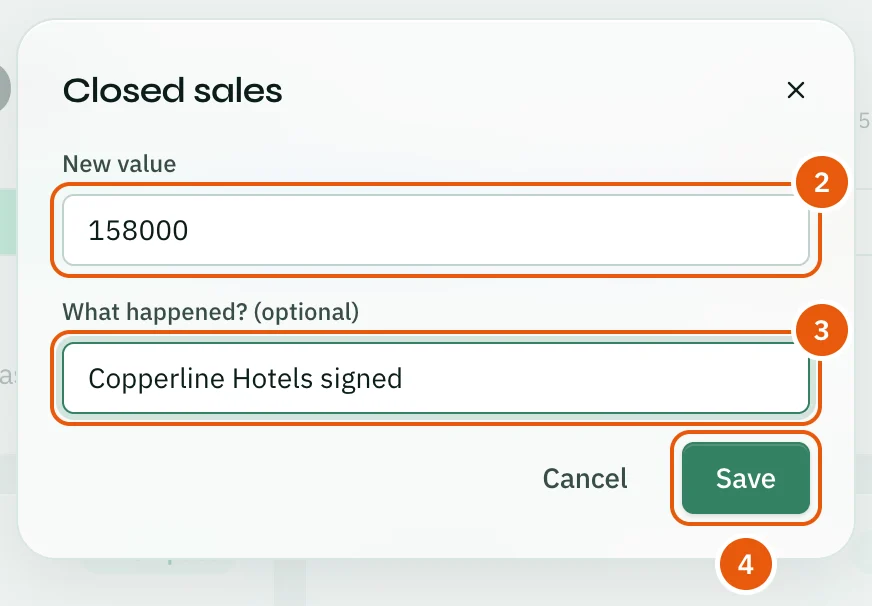
The change and your note appear in the goal's live feed. Key results that read a live source have no update button: they always show the live number.
If you change a key result's target in the middle of a quarter, say why in a check-in note, so the team knows later.
Thank you — that helps us improve the docs.