Members & Invites
Invite teammates, assign roles, and manage seats
Last updated 2026-11-01
Workspace Settings → Members is where the workspace owner manages who has access to the workspace.
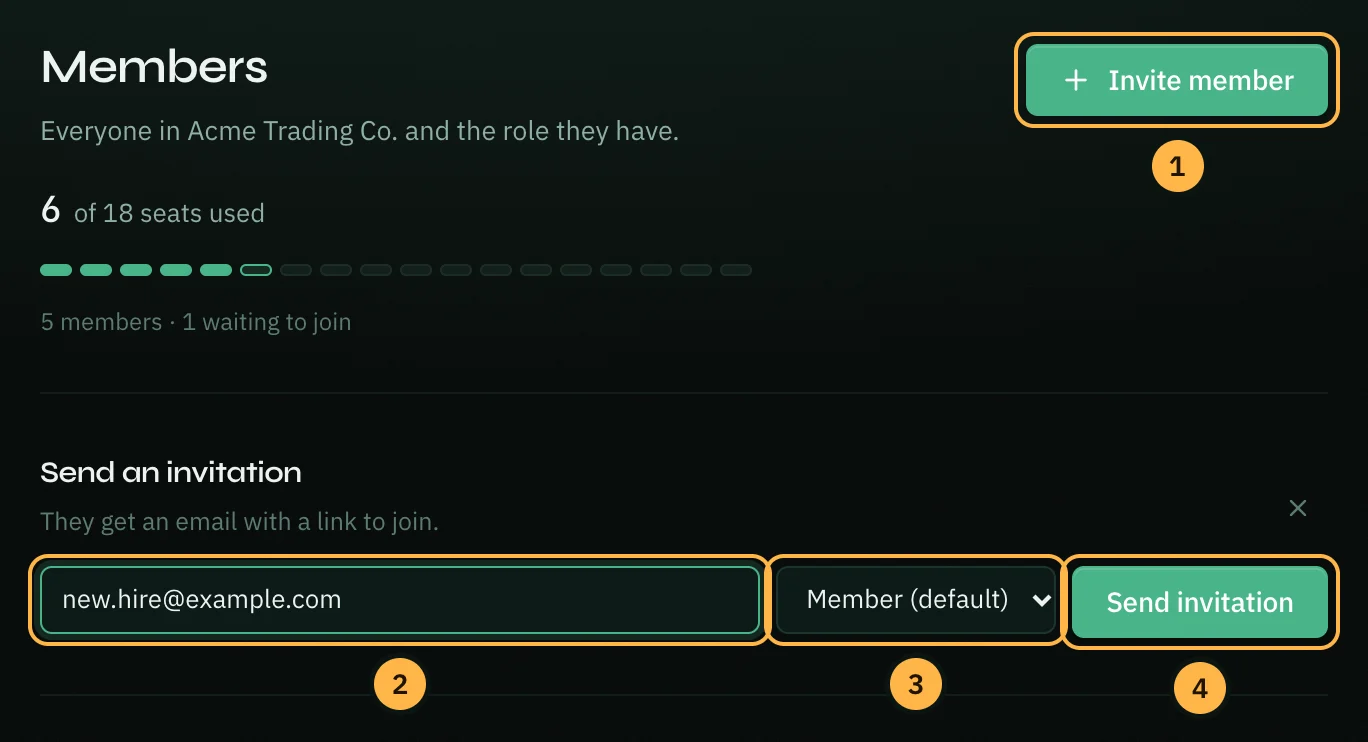
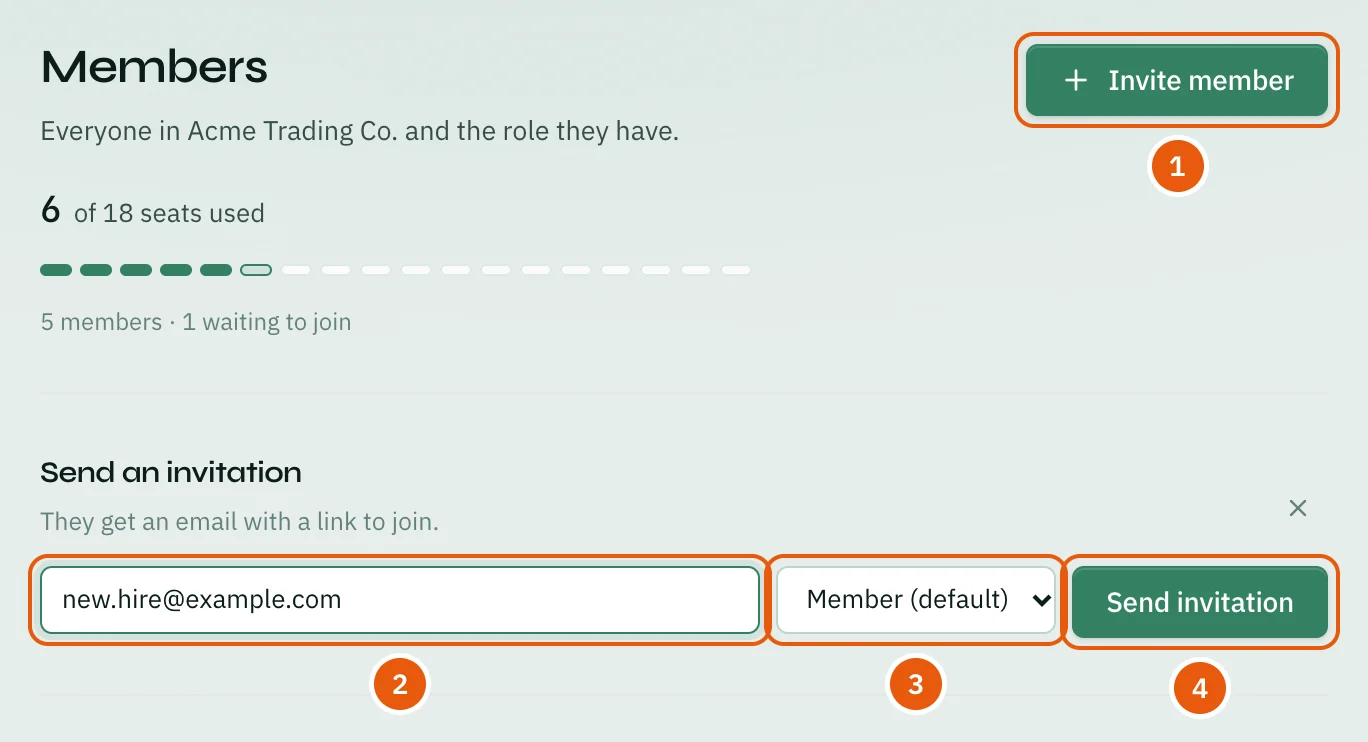
Inviting a Member
- Click Invite member at the top right.
- Type the person's email address.
- Pick one of the workspace's roles (see Workspace → Roles & Permissions). Member is the default.
- Click Send invitation.
They receive an email invitation with a link that is valid for 7 days. If the recipient doesn't have an Opzello account yet, the invite link lets them register and join in one step; existing users are prompted to sign in and accept.
Until they accept, the invitation shows at the end of the People list, with who sent it and when it expires. If an invitation waits more than two days, it also shows under Needs attention on Workspace Settings → General.
Shareable join link
Instead of inviting people one by one, the owner can turn on the Shareable join link with its switch. Anyone with the link can join the workspace. Under New members join as, pick the role they get (Member by default). Use Copy to share the link, Regenerate to make a new one (the old link stops working), or turn the switch off to stop it. Each of these happens right away.
Seats
Invites draw from the seat pool shared across all workspaces you own (see Hub → Billing Across Workspaces). Under the page title, Members shows how many seats are in use, as a number and as a row of small bars: filled for people, outlined for invitations still waiting. A pending invitation uses a seat until it is accepted or revoked. When two or fewer seats are left, Needs attention on Workspace Settings → General says so. If you're at your seat limit, free up a seat or open a support ticket to upgrade the plan before sending a new invite.
Managing Existing Members
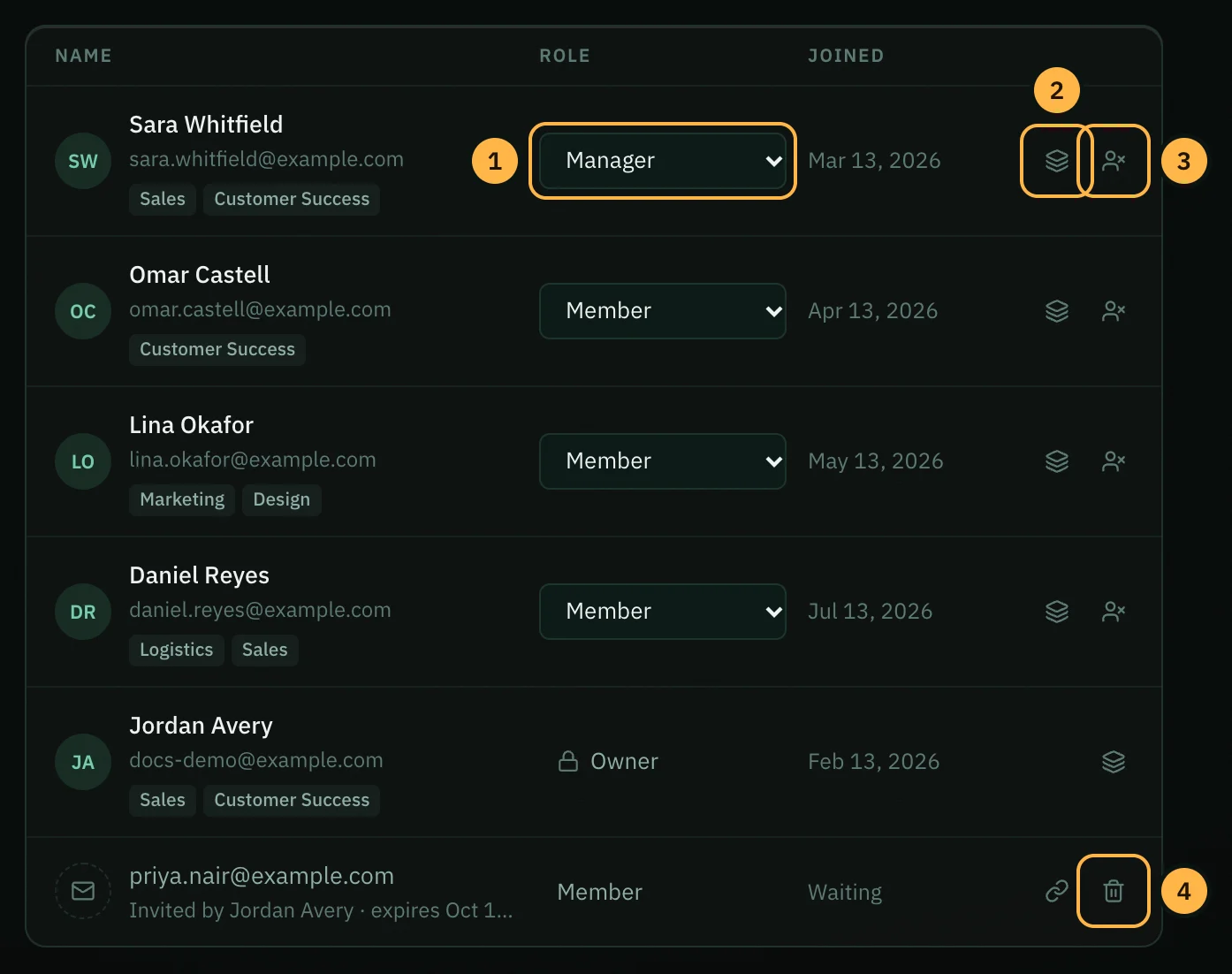
The People list shows each person's name, email, work roles, workspace role and when they joined. The owner's role shows a lock: it can't be changed. For each member, the owner can:
- Change their role — pick another role in the list on their row. The change saves right away.
- Edit their work roles — click the layers icon.
- Remove them — click the person icon with a cross. This immediately revokes their access to this workspace; their past work logs and records stay intact.
- Revoke a pending invitation — click the bin icon next to it, before it's accepted. The link icon next to it copies the invite link again.
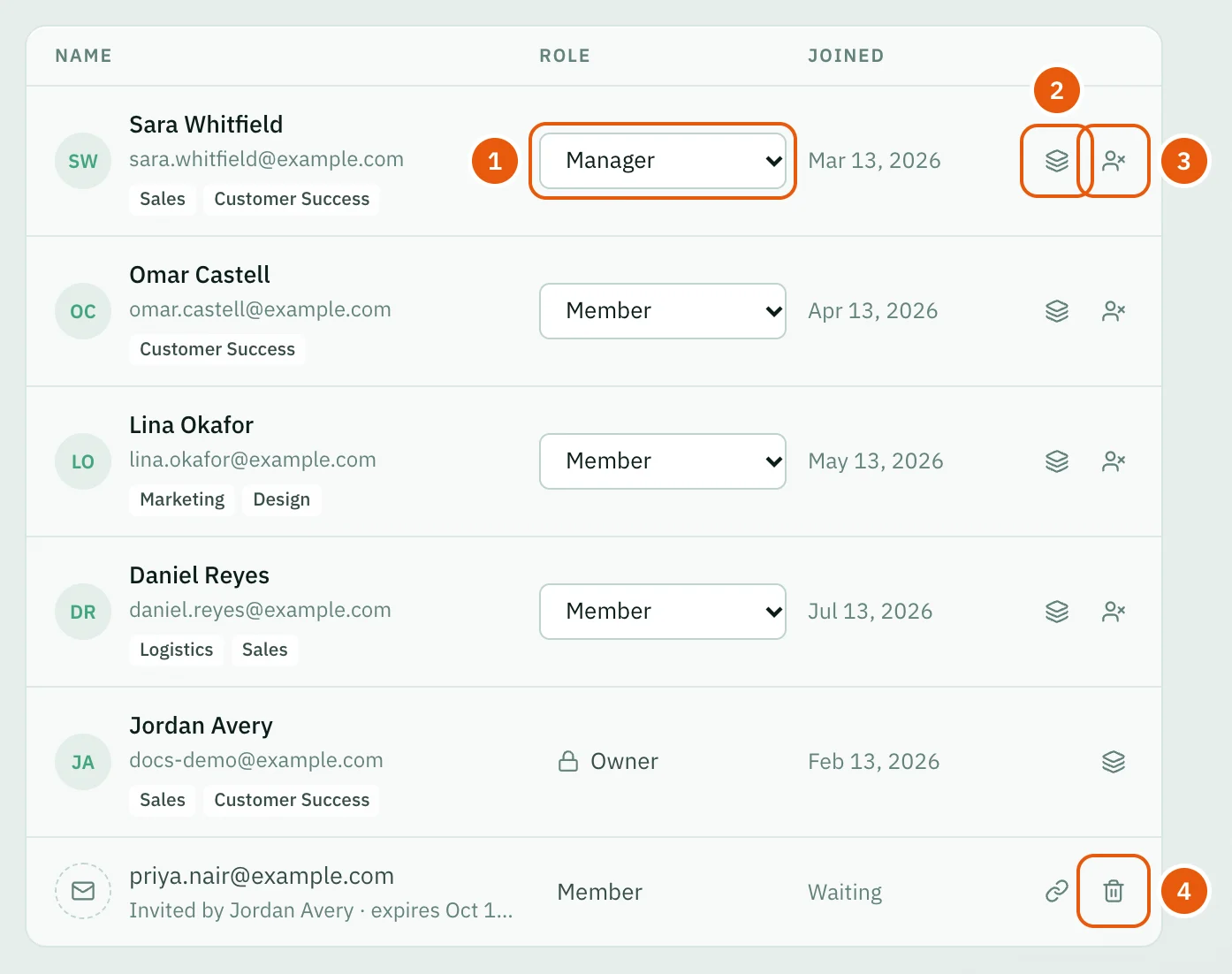
Removing a member does not delete their user account — they simply lose access to this workspace. Their other workspaces are not affected.
You can also change a member's role, set their monthly AI token limit or remove them from their profile on the Team page. See Team → Member Profile.
Thank you — that helps us improve the docs.